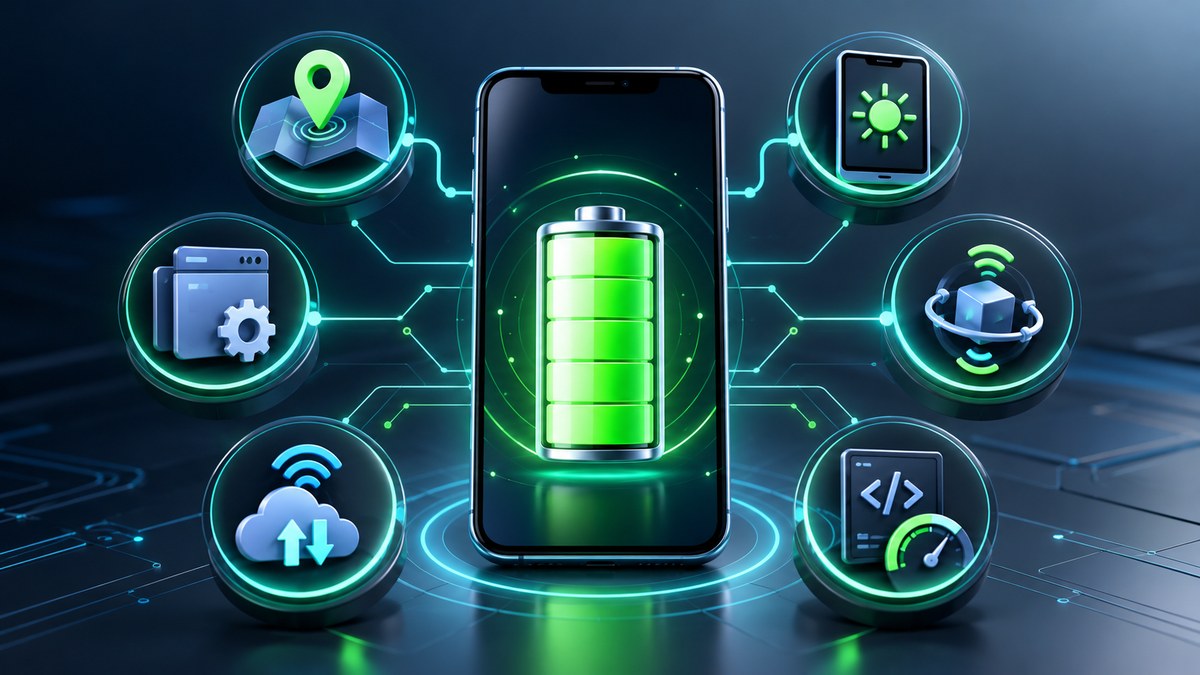
Your Cordova app is running well in the emulator. But the moment a user takes it off the charger at 8 AM, the battery percentage starts dropping like a stone. You have seen the reviews. “Great app, eats my battery.” It is a frustrating problem that is hard to reproduce in a controlled environment. The good news is that the drain is rarely a mystery. It usually comes from a handful of predictable culprits: polling loops, heavy JavaScript, inefficient plugins, and a WebView that never sleeps.
Reducing Cordova app battery drain requires targeting four main areas: network polling, background JavaScript, plugin configuration, and the WebView lifecycle. By switching to push notifications, using Web Workers, batching writes, and profiling with platform tools, you can cut battery usage by 40% or more without rewriting your entire app.
Start with the Network: Kill the Polling
The single biggest battery killer in most Cordova apps is constant network polling. Every time your app wakes up the radio to check a server, the phone’s modem draws a noticeable burst of power. Doing this every few seconds turns the device into a miniature space heater.
Replace polling with push notifications. Use Firebase Cloud Messaging, a WebSocket connection, or a Cordova plugin for native push. The device stays in a low-power state until a server sends a signal. For example, if you have a chat app that checks for new messages every 5 seconds, switch to a persistent WebSocket. The battery impact is night and day.
If you must keep a heartbeat connection, set the interval to 15 minutes or longer. Most users do not need instant updates. A 60 second polling interval is usually unnecessary.
Tame the JavaScript Engine
Cordova apps run inside a WebView. That WebView has to interpret JavaScript, and heavy JavaScript keeps the CPU awake. Even idle JavaScript can prevent the device from entering a deep sleep state.
Here is a practical checklist to reduce JavaScript related drain:
- Remove unused libraries. Audit your
package.jsonand cut anything you are not actively using. - Avoid
setIntervalfor background tasks. Use event driven patterns instead. - Lazy load components. Do not initialize views until the user actually opens them.
- Use
requestAnimationFramefor animations instead ofsetTimeout. It lets the browser schedule work more efficiently. - Minify and bundle your scripts. Less code means less parsing.
One overlooked area is the DOM. If you create and destroy large DOM trees repeatedly, the garbage collector has to run more often. That costs CPU cycles. Reuse elements when you can.
6 Proven Methods to Reduce Your Cordova App’s Battery Drain on Mobile Devices
Here is the numbered list that gives this article its title. Each method is a specific action you can take today.
- Switch from HTTP polling to a persistent WebSocket or server-sent events. This cuts radio usage by 90% or more.
- Move heavy computation to a Web Worker. Long running JavaScript blocks the UI thread and keeps the CPU at high frequency. Offload it.
- Batch disk writes and database commits. Use Cordova’s native file plugin to accumulate writes and flush them every 30 seconds instead of writing each time.
- Disable unused sensors and location services. If your app does not need GPS, do not request it. The GPS chip draws significant power.
- Implement a battery-aware mode. Check the device’s battery level and reduce sync frequency, animation quality, or background updates when the battery is below 20%.
- Profile with platform tools. Use Android Studio’s Power Monitor and iOS’s Energy Profiler to find hot spots. Guessing is not enough.
The Plugin Problem: Choose Wisely
Not all Cordova plugins are created equal. Some wrap native APIs efficiently. Others introduce overhead. When you need to reduce Cordova app battery drain, the plugins you choose matter more than the JavaScript you write.
| Plugin Type | Battery Friendly? | Recommendation |
|---|---|---|
| Push Notifications | Yes | Use native push via Firebase or Cordova push plugin |
| GPS / Location | No | Request only on demand, never in background |
| Sensors (Accelerometer) | No | Turn off when not in active use |
| Camera | No | Release the camera handle immediately after capture |
| WebSocket Client | Yes | Keep connection alive with low power mode |
| File I/O (Native) | Moderate | Batch writes to reduce disk spin |
A common mistake is leaving a location listener registered after the user navigates away from a map screen. That single listener can drain 5% of battery per hour. Always unregister listeners in the deactivate or pause lifecycle event.
Web Workers Are Your Friend
Cordova apps often do image processing, JSON parsing, or data encryption on the main thread. This blocks the UI and keeps the CPU at full power for longer than necessary. Web Workers let you move that work to a separate thread.
// worker.js
onmessage = function(event) {
  // heavy processing here
  postMessage(result);
};

// main.js
let worker = new Worker('worker.js');
worker.postMessage(largeData);
The main thread stays responsive. The CPU finishes the work faster because it can run in parallel. The device returns to idle sooner. If you are not using Web Workers yet, start with your most expensive operation. It is often the JSON serialization of a large dataset.
Understanding the WebView Lifecycle
The WebView in Cordova is a full browser engine. It uses power even when it is not visible. If your app has multiple screens, make sure the WebView is not doing work in the background.
Use the Cordova onPause and onResume events to stop background timers and release resources. For example, if you have a timer that fetches stock prices every 30 seconds, stop it when the user switches to a settings screen. Start it again when they return.
“The most efficient code is the code that does not run.” This is especially true for mobile battery life. Always ask: does this need to happen right now, or can it wait until the user is interacting?
Common Mistakes Developers Make
Here are the pitfalls that keep draining battery even after you think you have fixed everything:
- Registering event listeners that never get removed
- Using
console.login production (it forces the CPU to format strings) - Keeping the screen brightness high through CSS overrides
- Loading large images at full resolution instead of using thumbnails
- Using synchronous HTTP requests that block the thread
A table of these mistakes with their fixes:
| Mistake | Impact | Fix |
|---|---|---|
| Orphaned event listeners | CPU stays awake | Remove listeners in onPause |
| Production console.log | CPU formatting overhead | Strip logs during build |
| Full resolution images | GPU and memory load | Serve thumbnails, lazy load |
| Synchronous HTTP | Thread blocking | Use async fetch with timeout |
| Unoptimized CSS animations | GPU drain | Use hardware accelerated transforms |
Profile Before You Optimize
You cannot fix what you do not measure. Android Studio’s power profiler and iOS’s Energy Consumption tool give you a per function breakdown of battery usage. Run your app for 10 minutes while profiling. Look for functions that keep the CPU at high frequency for more than 5 seconds.
If you see a spike every 30 seconds, that is your polling loop. If you see constant low level activity, that is likely a listener or a background timer. If you see a flat line that suddenly jumps, that is a user initiated action that is taking too long.
For a deeper look at how to find these issues, check out our guide on mastering debugging techniques for Apache Cordova apps. It covers the specific tools and commands you need.
Build for the Real World
Your users are not plugged in all day. They are on a train, in a meeting, or walking their dog. Your app should adapt to their context.
Implement a battery aware mode. On Android, you can read the battery level using the Cordova battery plugin. On iOS, use the native battery API. When the level drops below 20%, reduce sync frequency, turn off animations, and stop background data processing. Let the user know you are saving battery.
This is not just a nice feature. It is a trust signal. Users notice when an app respects their device’s battery. They also notice when it does not.
Putting It All Together
You do not need to rewrite your entire Cordova app to reduce Cordova app battery drain. Start with the biggest offender: network polling. Replace it with push notifications. Then audit your JavaScript. Move expensive work to Web Workers. Profile with platform tools. Finally, add a battery aware mode.
The table below summarizes the techniques and their expected impact:
| Technique | Effort | Battery Improvement |
|---|---|---|
| Replace polling with push | Medium | 30-50% |
| Add Web Workers | Low | 10-20% |
| Batch disk writes | Low | 5-10% |
| Remove orphaned listeners | Low | 10-15% |
| Battery aware mode | Medium | 15-25% |
| Plugin audit | High | 20-40% |
Your Next Step
Pick the method that will have the biggest impact on your app right now. For most Cordova apps, that is method one: replace HTTP polling with push notifications. Make that change this week. Profile the result. You will see the difference in your battery graph.
If you want to go further, read our guide on why your Cordova app’s performance is tanking on iOS 2026 and how to fix it. The same principles apply there.
Your users will thank you. Their battery will thank you. And your app store rating will thank you.