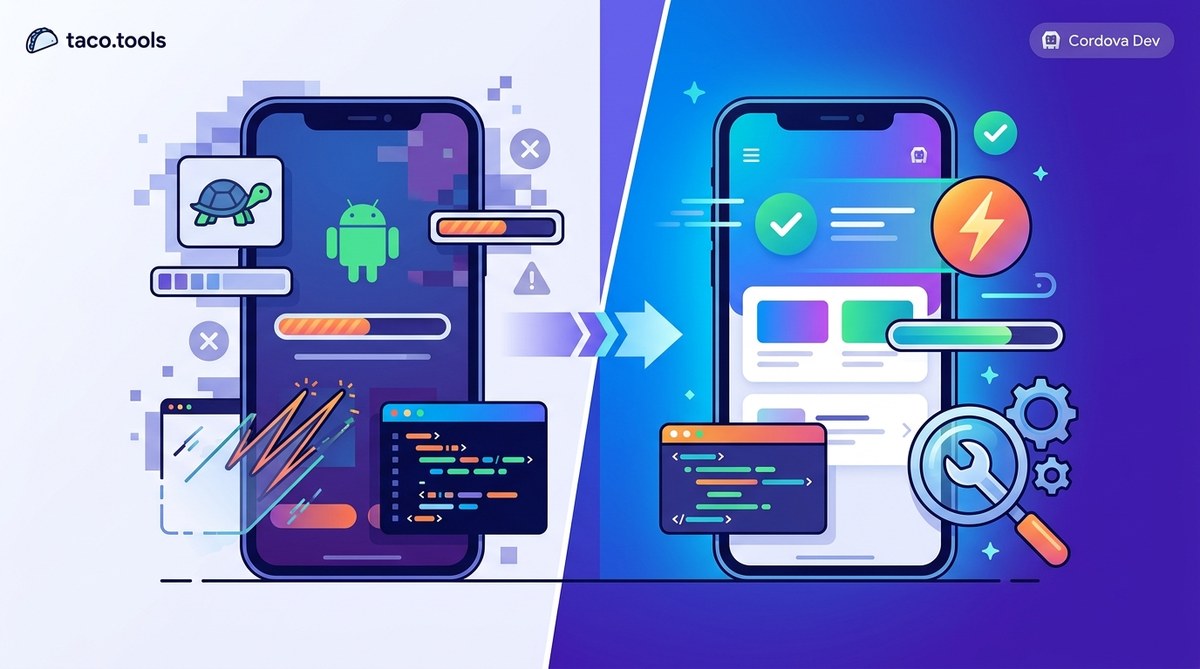
Your Cordova app works fine during development. Then you sideload it onto a real Android phone and the UI feels like it's wading through molasses. Taps miss. Scrolling stutters. Animations hitch. You are not alone, and it is not because Cordova is broken. Android's WebView environment has changed a lot in recent years, and the old tricks that worked in 2029 no longer cut it. The good news? The fix is usually a combination of configuration changes, smarter asset handling, and a few plugin swaps.
Android's ChromeView engine in 2026 is far more capable than the old WebView, but it punishes sloppy HTML and heavy JavaScript. Your lag is likely caused by render-blocking assets, missing hardware acceleration flags, or plugin bloat. Fix these three areas first, and your app will feel close to native without rewriting the whole thing.
Why Android Feels Different in 2026
Android devices ship with wildly different hardware. A $200 phone and a $1,000 phone both run Cordova apps, but the experience gap is brutal. The core issue is that your app runs inside a WebView that relies on the device's GPU for rendering. If your CSS or JavaScript forces software rendering, every frame becomes a burden.
The biggest shift in 2026 is Android's deprecation of older rendering paths. Modern Android versions aggressively throttle apps that do not declare proper GPU usage. If your config.xml still uses settings from 2021, the OS treats your app like a background tab and starves it of resources.
The Main Culprits Behind UI Lag
Let's look at the three most common reasons your Cordova app feels sluggish on Android. Each one has a direct fix.
1. Missing or Wrong WebView Engine Settings
Cordova apps on Android use ChromeView by default in 2026. But the default configuration does not always enable hardware acceleration. You need to explicitly tell Android to give your app full GPU access.
Check your config.xml for these settings:
<preference name="android-enable-hardware-acceleration" value="true" />
<preference name="android-use-chrome-view" value="true" />
<preference name="android-enable-native-scrolling" value="true" />
If android-enable-hardware-acceleration is missing or set to false, your app renders everything through the CPU. That is the number one cause of stuttery scrolling and delayed tap responses.
2. Heavy DOM and Unoptimized Assets
Your app might be loading too many DOM elements at once. A single page with 5,000 nested divs will choke any WebView. Android's ChromeView handles smaller DOM trees much better, but it still struggles with massive layouts.
Common mistakes include:
- Using large PNGs for every icon instead of SVGs
- Loading full-resolution images meant for desktop screens
- Running heavy JavaScript animations on the main thread
- Not lazy loading any content below the fold
3. Plugin Bloat and Deprecated Libraries
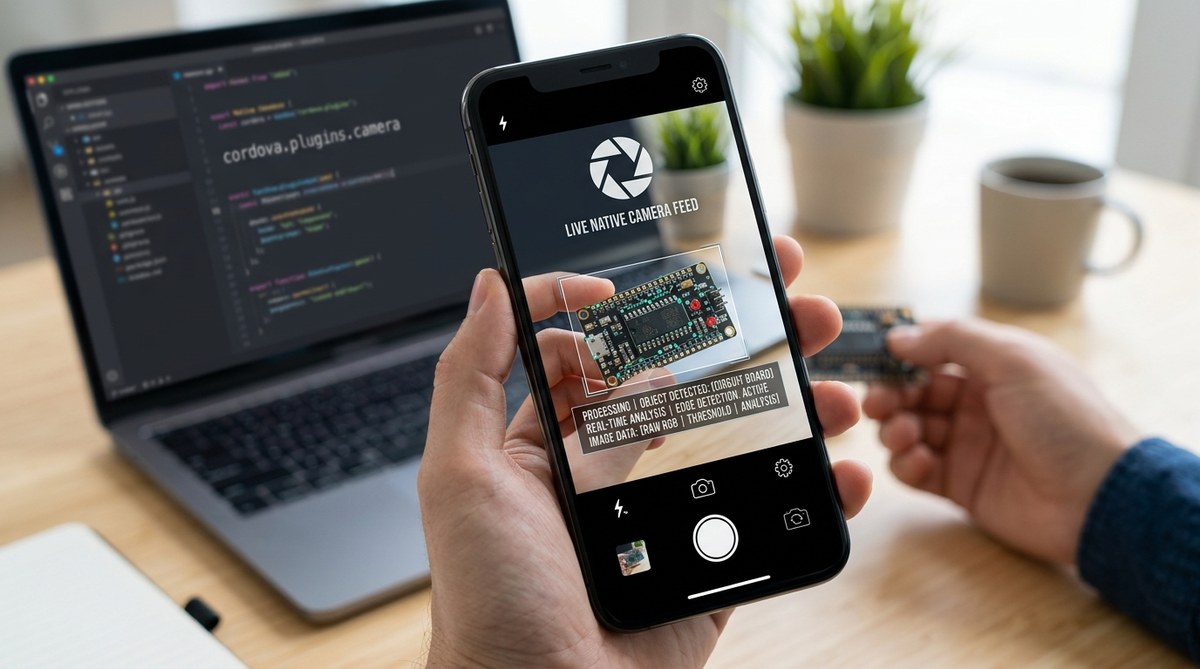
Old Cordova plugins that rely on native Android APIs from five years ago can cause conflicts. Plugins that manage camera access, sensors, or file pickers sometimes block the UI thread while they initialize.
Review your plugins/fetch.json and remove anything that is not actively used. A plugin for Bluetooth that you never call still gets loaded into the app context on Android.
A Step-by-Step Diagnostic Process
Follow this numbered list to identify where your lag is coming from. Do not skip steps.
-
Profile the render time. Run your app on an Android device with developer options enabled. Go to Settings > Developer Options > Enable GPU profiling. Watch the frame timeline. If you see dips below 30 fps during normal scrolling, your rendering pipeline is the problem.
-
Check the WebView version. Open your app and navigate to a hidden diagnostic page that displays
navigator.userAgent. If the string does not includeChrome/1XX(where XX is 20 or higher), your app is using an outdated WebView. Update your Cordova Android platform to the latest version. -
Audit your CSS. Look for properties that force software rendering. The worst offenders are
filter,box-shadowon every element, andtransform: translate3dused incorrectly. Remove any CSS that applies shadows or blurs to large areas. -
Test with plugins disabled. Create a build that removes all third-party plugins except the core Cordova ones. If the lag disappears, add plugins back one by one until you find the culprit.
-
Measure memory usage. Use Android Studio's memory profiler while your app runs. Watch for memory leaks that cause garbage collection pauses. A leak of just 2 MB per minute will cause visible stutters after 30 seconds.
Common Mistakes vs. Best Practices
Here is a table that compares what many developers do wrong versus what actually works in 2026.
| Mistake | Best Practice |
|---|---|
Using position: fixed for headers |
Use position: sticky with will-change: transform |
| Loading all images eagerly | Use lazy loading with loading="lazy" on <img> tags |
Running JavaScript animations with setInterval |
Use requestAnimationFrame or CSS keyframes |
| Importing the full Bootstrap CSS | Use a minimal CSS framework or custom styles |
Using cordova-plugin-camera from 2019 |
Switch to the native Android Camera API via Cordova's plugin registry |
Setting android-enable-hardware-acceleration to false |
Set it to true and test on five different Android devices |
Why Old Fixes Fail Now
A lot of advice online still tells you to disable hardware acceleration. That was a workaround for Android 10 and 11 when ChromeView was buggy. In 2026, disabling hardware acceleration makes your app slower on every modern Android device. The bugs have been fixed. You need acceleration on.
Another outdated tip is to minify all JavaScript into one giant file. Modern Android devices handle multiple script tags fine. What they do not handle is a single 5 MB file that blocks rendering. Split your scripts by concern and load critical paths first.
Expert advice from a Cordova core contributor in 2026: "The most common performance issue I see is developers treating Cordova like a static website. Android ChromeView is a real browser engine. Use it like one. Cache headers, content negotiation, and server push all work. Stop fighting the platform and start using its strengths."
How to Test Your Fixes
You cannot trust the emulator. Android emulators run on your desktop GPU, which is far more powerful than any phone. Always test on real hardware.
Build a small test matrix with these devices:
- An older Android phone (2021 or earlier) with 3 GB RAM
- A mid-range phone from 2024 with 6 GB RAM
- A flagship phone from 2025 or 2026
Run the same scrolling and tap tests on all three. Your app should feel consistent. If it only works well on the flagship, you still have work to do.
Specific Code Changes That Help
Enable GPU Rendering in JavaScript
Add this at the top of your main JavaScript file to hint the renderer:
document.body.style.willChange = 'transform';
document.body.style.transform = 'translateZ(0)';
This pushes rendering to the GPU on Android ChromeView.
Reduce DOM Size
Aim for fewer than 500 DOM elements per visible screen. Use display: none sparingly. Instead, use visibility: hidden or opacity: 0 for elements that need to keep their space.
Use the Right Image Format
Convert all UI icons and small images to WebP format. Android ChromeView handles WebP natively with lower memory overhead than PNG. For photos, use JPEG at 80% quality. Do not use BMP or TIFF.
A Practical Action Plan
Here is a bulleted list of things you can do today to start fixing your Cordova app laggy Android fix:
- Update Cordova Android platform to the latest stable release
- Set
android-enable-hardware-accelerationtotrue - Replace all PNG icons under 100x100 pixels with inline SVGs
- Add
loading="lazy"to every<img>tag below the fold - Remove any CSS
filterorbox-shadowthat covers more than 200 pixels - Profile your app on a real Android device, not an emulator
- Remove unused plugins from your project
- Split your main JavaScript file into separate modules for UI, API calls, and background tasks
Building on This Foundation
Once you have smoothed out the UI, you can take your Cordova app further. For example, learning about mastering Cordova plugin development for cross-platform compatibility helps you avoid plugin bloat in the first place. You can also check out our guide on boost your Cordova app performance with effective optimization techniques for deeper dives into asset pipelines. And if you manage multiple Android versions, the 7 Cordova project pitfalls and how to avoid them in 2026 article covers version-specific traps.
Your App Can Feel Smooth Again
The lag you are seeing is not a sign that Cordova is dying. It is a sign that your app configuration has not kept up with Android's evolution. Android in 2026 is faster and more capable than ever. You just have to tell it to treat your app with respect. Enable hardware acceleration, trim your DOM, update your plugins, and test on real devices. Do those four things, and your users will stop complaining about the stutter. They might even compliment how smooth the app feels.