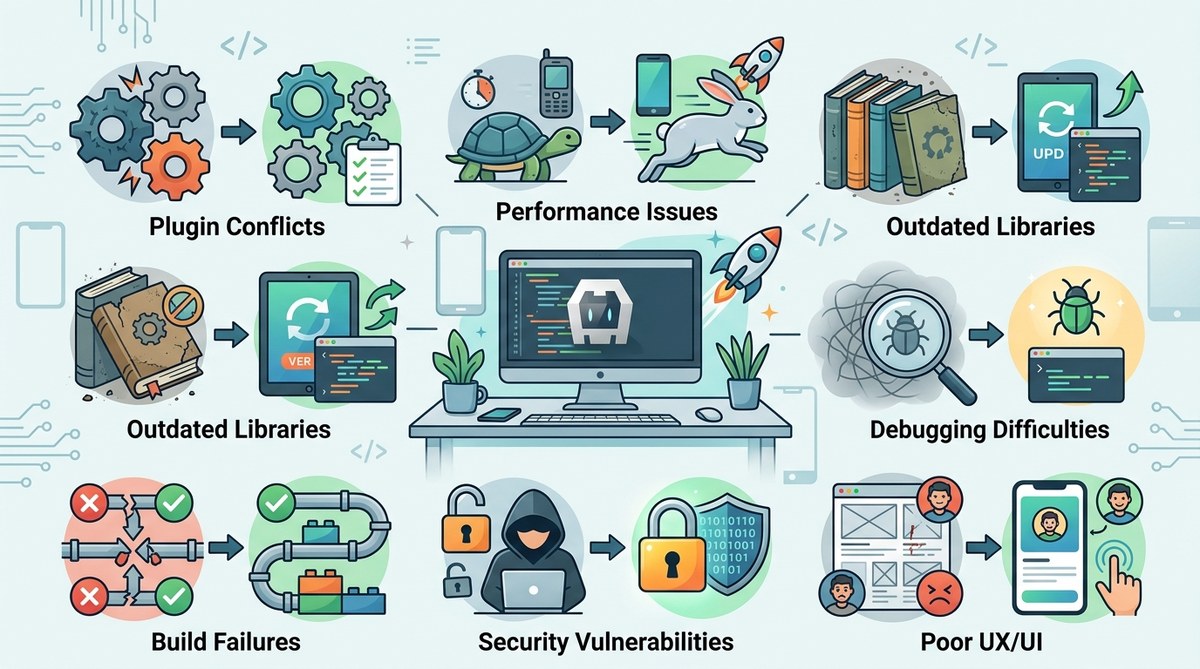
Building cross-platform mobile apps with Apache Cordova is still a smart move in 2026. You get one codebase for iOS and Android, a huge plugin ecosystem, and the flexibility of web technologies. But the same shortcuts that make Cordova appealing can also lead to frustrating project stalls, delayed releases, and buggy user experiences. After helping dozens of teams ship Cordova apps, I’ve seen the same mistakes surface again and again. Let’s walk through the seven most common Cordova pitfalls and exactly how to dodge them.
The biggest Cordova project failures come from ignoring platform differences, letting plugin versions drift, skipping native debugging, and treating security as an afterthought. Fix those four areas, and you will cut rework time by half. This guide gives you concrete steps to avoid each pitfall and ship with confidence.
1. Assuming Android and iOS Behave the Same Way
The first pitfall is treating your Cordova app like a plain web app. Yes, you write HTML and JavaScript, but the WebView on iOS (WKWebView) and the one on Android (Android System WebView) have real differences. For example, WKWebView does not support synchronous XMLHttpRequest. Android’s WebView handles file:// access differently than iOS. And scrolling momentum or touch events can look noticeably different between platforms.
Many developers test only on their personal device. Then, a week before launch, the iOS build shows broken navigation or a white screen. To avoid this, test on both platforms from day one. Use cloud device labs or keep a dedicated iPhone and Android phone on your desk. Also, check feature support with the caniuse database and add polyfills early. For a deeper look at handling these quirks, see our guide on mastering Cordova plugin development for cross-platform compatibility.
2. Letting Plugin Versions Drift Out of Sync
Cordova plugins are the backbone of native features. But plugin versioning can become a nightmare if you are not careful. A common mistake is installing a plugin with “cordova plugin add” and never freezing its version. When a team member rebuilds a week later, they might fetch a newer minor version that introduces breaking changes. Even worse, a plugin update might require a newer Cordova CLI, and suddenly the whole project refuses to build.
To avoid this pitfall, always specify exact plugin versions in your package.json or config.xml. Use “cordova plugin add [email protected]”. Also, lock your Cordova CLI version globally or per project. Before updating any plugin, read the changelog and test on both platforms. If you have many plugins, maintain a dependencies table like this:
| Plugin | Minimum Version | Compatible CLI | Notes |
|---|---|---|---|
| cordova-plugin-camera | 6.0.0 | 11.x+ | Remove deprecated API |
| cordova-plugin-file | 7.1.0 | 11.x+ | Check iOS sandbox limits |
| cordova-plugin-inappbrowser | 5.1.0 | 11.x+ | Use for OAuth flows |
This table helps your whole team stay in sync. For more on plugin best practices, check how to integrate native device features into your Cordova apps seamlessly.
3. Debugging Only in the Browser
It is tempting to rely on Chrome DevTools for all debugging. After all, the app runs on web tech. But browser-only debugging misses native issues like plugin failures, memory limits, and platform-specific rendering. I have seen teams spend a full day chasing a JavaScript bug that turned out to be a missing native permission callback on Android.
Use a proper remote debugging setup for each platform. On Android, use chrome://inspect. On iOS, use Safari Web Inspector (enable it in Safari settings). Also, consider using tools like Weinre or the Cordova plugin for console logs. Running the app on a real device reveals edge cases that emulators miss. For a complete walkthrough, read our article on essential debugging tips for hybrid Cordova applications.
4. Relying on the Default config.xml Without a Custom Build Plan
The default config.xml that Cordova generates is a good starting point, but it leaves out many production settings. Pitfall number four is shipping an app with no content security policy, no splash screen configuration, and wrong orientation settings. This leads to security warnings, ugly black screens on cold starts, or apps that rotate when you do not want them to.
Take time to customize. At minimum, set:
- A proper Content Security Policy meta tag in your index.html
- Splash screen images for all resolutions
- Preferred orientation (portrait or landscape)
- App version and build number
- Plugin preferences (e.g., camera usage description for iOS)
Also, use build hooks for environment-specific configurations. For example, inject a different API endpoint for staging vs. production. Learn how to streamline this process in how to streamline your Cordova development workflow.
“Treat config.xml like a deployment checklist. Every missing preference is a potential rejection from an app store.” – Sarah Chen, Lead Mobile Architect at AppVault
5. Ignoring Asset Optimization and Caching
Cordova apps bundle all assets inside the APK or IPA. If you are not careful, your app size will balloon. A common pitfall is including uncompressed images, unused Bootstrap CSS, or heavy JavaScript libraries that are not tree-shaken. Large assets increase download time and make the app feel sluggish.
Optimize everything. Use image compression tools (like Squoosh or ImageOptim) before adding files to the project. Enable Brotli or Gzip compression for remote content (if using a server). Implement local caching with the cordova-plugin-file or a service worker, but be aware of iOS cache limits. Also, remove unused Cordova plugins; each plugin adds native code to the binary. For performance specifics, see boost your Cordova app performance with effective optimization techniques.
6. Treating Security as an Afterthought
Security is often low on the priority list until a vulnerability is discovered. In 2026, with stricter app store requirements and growing awareness, you cannot afford to ignore it. Common Cordova security pitfalls include:
- No Content Security Policy (CSP) allows XSS attacks
- Using cleartext HTTP for API calls in production
- Storing sensitive data in LocalStorage without encryption
- Exposing native plugin APIs through JavaScript insecurely
To fix these, always define a strict CSP that only allows your trusted domains. Use HTTPS everywhere. Encrypt tokens and sensitive data with a library like crypto-js (though note that encryption in JavaScript has limitations; consider using a native plugin if you need high security). Enable the cordova-plugin-whitelist to restrict network access. Review the official top best practices for building secure Cordova applications in 2026 for a complete checklist.
7. Skipping Automated Integration Tests
Manual testing on a few devices cannot catch all edge cases. The final pitfall is having no automated tests. Cordova apps involve interaction between JavaScript and native code, so unit tests for your JavaScript alone are not enough. You need integration tests that run on real devices or emulators.
Here is a simple process to get started:
- Set up a CI pipeline (e.g., GitHub Actions, Jenkins) that builds your app for both platforms.
- Use a testing framework like Appium or Detox to run end-to-end flows (login, camera access, file download).
- Add a smoke test that checks if the app launches without JavaScript errors.
- Include a test that verifies critical plugin functionality (e.g., geolocation permissions).
- Run tests on at least one real device per platform.
- Fail the build if any test fails.
- Monitor test results over time to catch regressions quickly.
Automated testing saves you from embarrassing broken releases. For a practical guide on setting this up, see how to automate Cordova builds with GitHub Actions and enhance your Cordova development with advanced testing tools.
A Simple Checklist to Keep Your Cordova Project on Track
Here is a bullet list you can print and stick to your monitor:
- Test on real iOS and Android devices from week one
- Lock plugin and CLI versions
- Use platform-specific remote debugging
- Customize config.xml for security and splash screens
- Optimize all assets before bundling
- Enforce HTTPS and CSP
- Automate integration tests
Build Cordova Apps That Last
The seven Cordova pitfalls above come from real projects that went sideways. But they are all avoidable. By respecting platform differences, managing plugins tightly, debugging natively, configuring your app for production, optimizing assets, hardening security, and automating tests, you will ship faster and sleep better. Your users will notice the difference in app performance and reliability.
If you want to go deeper on any of these topics, we have guides for each area. Start with mastering performance optimization for hybrid apps with Apache Cordova or optimizing deployment strategies for Cordova apps in 2026. The key is to adopt these practices before the crisis hits, not after. Happy coding.