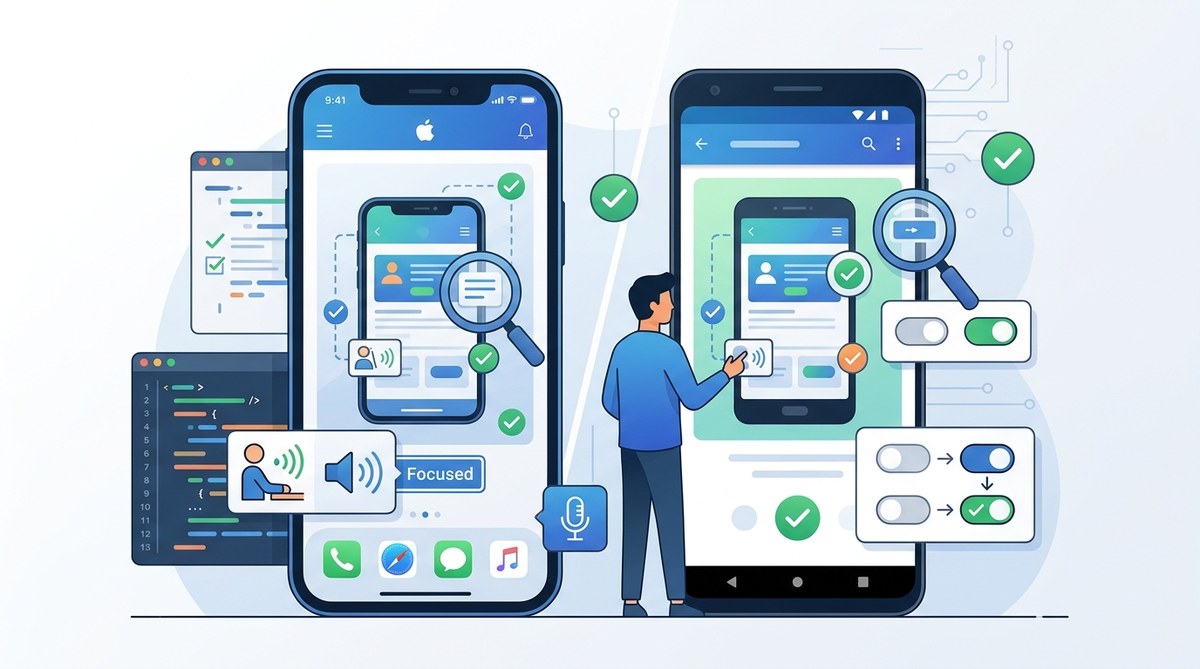
Building a mobile app that works for everyone is not just about good intentions. It is about meeting legal standards, avoiding lawsuits, and reaching a wider audience. If you are a developer or product owner using Cordova, you already know the challenge. You write code once, but it runs on two very different operating systems. Accessibility adds another layer to that complexity.
The Web Content Accessibility Guidelines, or WCAG, apply to mobile apps too. Courts and regulators increasingly treat mobile apps as public accommodations under the ADA. That means WCAG compliance for mobile apps is no longer optional. It is a requirement.
This guide walks you through what WCAG means for your Cordova app, how to test for it, and how to fix the most common issues on iOS and Android.
WCAG compliance for mobile apps requires understanding both platform-specific tools and universal guidelines. Focus on four core principles: perceivable, operable, understandable, and robust. Use automated scanners for a first pass, then test manually with screen readers. Pay special attention to touch targets, color contrast, and focus order. Your Cordova app can pass WCAG 2.1 AA with the right testing workflow.
What WCAG means for your Cordova app
WCAG is organized around four principles. Your app content must be perceivable, operable, understandable, and robust. Each principle has specific success criteria at levels A, AA, and AAA. For most mobile apps, the target is Level AA.
Your Cordova app renders inside a WebView. That WebView inherits accessibility features from the underlying operating system, but it does not get them for free. You have to set ARIA attributes, manage focus order, and provide text alternatives manually.
The good news is that Cordova apps can pass WCAG checks. The bad news is that many developers skip the basics because they assume the WebView handles it. It does not.
Common accessibility mistakes in Cordova apps
Here are the most frequent problems we see in Cordova projects. These are the low-hanging fruit that trips up WCAG compliance for mobile apps.
- Missing alternative text on images and icons
- Buttons and links that are too small to tap
- Color-only indicators for status or errors
- No support for screen rotation or zoom
- Focus order that jumps around the screen
- Custom interactive elements without ARIA roles
- Videos without captions
- Forms that do not label their inputs
Each of these issues maps directly to a WCAG success criterion. Fixing them brings you closer to AA compliance.
A practical testing workflow
Testing for accessibility does not require a huge budget. You can start with free tools and manual checks. Follow this numbered process for each release.
-
Run an automated scanner. Tools like Axe for Android or the iOS Accessibility Inspector can catch about 30 percent of issues. Run these on your app in a real device or emulator. Automated tools miss a lot, but they find the obvious stuff like missing alt text and low contrast.
-
Test with screen readers. On Android, use Voice Access or TalkBack. On iOS, use VoiceOver. Navigate your app using only the screen reader. Can you complete a purchase? Can you submit a form? If you get stuck, your users will too.
-
Check touch targets. WCAG 2.1 requires touch targets to be at least 44 by 44 CSS pixels. On high-DPI screens, that translates to about 9 millimeters. Measure your buttons and links. If they are smaller, increase their size.
-
Validate color contrast. Use a contrast checker to ensure text meets a 4.5:1 ratio for normal text and 3:1 for large text. Do not rely on color alone to convey information. Add icons or text labels.
-
Test with zoom and rotation. Enable screen rotation on your device. Zoom to 200 percent. Does your layout break? Do elements overlap? If so, your app fails the reflow criterion.
WCAG techniques and common mistakes
The table below maps specific WCAG criteria to Cordova development patterns. Use it as a checklist during code review.
| WCAG Criterion | What to do | What to avoid |
|---|---|---|
| 1.1.1 Non-text Content | Add alt attributes to all <img> tags. Use ARIA labels for icon buttons. |
Leaving images without alt text. Using CSS background images for content. |
| 1.4.3 Contrast Minimum | Use text colors with at least 4.5:1 contrast against backgrounds. | Light gray text on white backgrounds. |
| 2.3.1 Three Flashes | Do not use animations that flash more than three times per second. | Autoplaying carousels or strobe effects. |
| 2.4.3 Focus Order | Set tabindex in logical order. Use :focus-visible styles. |
Random tabindex values. Removing focus outlines. |
| 2.5.5 Target Size | Make touch targets at least 44×44 CSS pixels. | Tiny close buttons or links packed too closely. |
| 3.3.2 Labels or Instructions | Associate <label> elements with form inputs. |
Placeholder text used as the only label. |
“Accessibility is not a feature. It is a baseline. If your app cannot be used by someone with a disability, it is broken. Fix the break, not the symptom.”
Henny Swan, author of Inclusive Design Patterns
Platform-specific tips for iOS and Android
iOS and Android handle accessibility differently. Your Cordova app runs in a WebView on both, but the platform APIs are not the same.
On iOS, VoiceOver reads the viewport. Make sure your ARIA roles map correctly. Test with the iOS Accessibility Inspector to see how VoiceOver interprets your elements. Pay attention to heading levels. VoiceOver users often navigate by headings.
On Android, TalkBack is the default screen reader. Android also supports the Accessibility Tree. You can inspect this tree using the Android Accessibility Test Framework. Make sure your custom components expose the right roles and states.
Both platforms support focus magnification. Users can zoom in to see text better. Do not disable pinch zoom in your viewport meta tag. Let users control their own zoom level.
Building accessibility into your development workflow
The best time to fix accessibility is during development. Retrofitting it later costs more time and money. Here is how to build it into your process.
Add accessibility checks to your CI pipeline. Tools like Axe can run in a headless browser. You can catch missing alt text and low contrast before code review.
Include accessibility in your definition of done. Every user story should have an acceptance criterion for WCAG compliance. If the story adds a new button, the button must have a label, a focus state, and a sufficient touch target.
Train your team. Accessibility is a skill, not a checklist. Spend a half day each quarter running a screen reader workshop. Let your developers experience their app the way a blind user would. That empathy changes how they write code.
If you are working on Cordova-specific performance or deployment, check out our guide on mastering Cordova plugin development for cross-platform compatibility and our tips for optimizing deployment strategies for Cordova apps in 2026.
How to handle third-party components
Many Cordova apps use plugins for payments, maps, or social login. These third-party components are often the least accessible part of your app.
Audit every plugin you include. Does it support keyboard navigation? Does it announce itself to screen readers? If not, find an alternative or wrap it in accessible code.
For example, if your payment plugin renders a credit card form, make sure the input fields have proper labels. Do not rely on the plugin vendor to fix accessibility. You are responsible for the entire user experience, not just the parts you wrote.
Measuring your progress
WCAG compliance is not a binary state. You can be partially compliant. The goal is to improve over time.
Use a scoring tool like the WAVE API or the Accessibility Insights tool. Run it on every release. Track your score. If it drops, you know a new feature introduced a problem.
Also track user feedback. Provide a way for users to report accessibility issues. Some users will tell you when something is broken. Listen to them.
For a deeper look at testing, see our article on 5 essential testing strategies for Cordova apps in 2026.
Your next steps toward WCAG compliance for mobile apps
You do not need to fix everything at once. Start with the automated checks. Then move to screen reader testing. Then fix the most common issues like touch target size and color contrast.
Set a target. If your app is at Level A today, aim for AA in the next three months. If you are starting from scratch, aim for AA on your first public release.
WCAG compliance for mobile apps is a journey. Each release makes your app better for everyone. That is a win for your users and a win for your business.
Start today. Run an automated scan on your Cordova app. Fix the first issue you find. Then fix the next one. Your users will thank you.