You shipped a new build last week and everything worked fine. Then users started reporting that push notifications stopped arriving. No banner. No sound. Just silence. You check your server logs and see the messages were delivered. So where did they go?
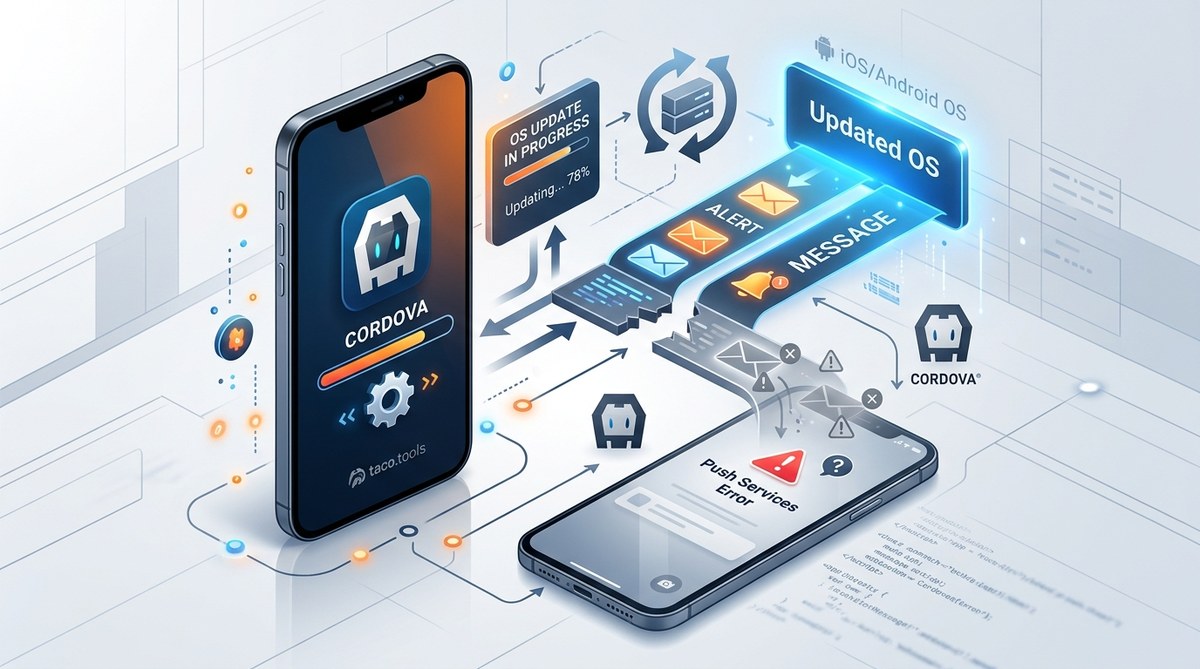
If you are a mobile app developer using Apache Cordova, this scenario feels all too familiar. A major OS update lands on iOS or Android, and suddenly your push notification system goes dark. The root cause is almost never a mystery. It is usually a combination of deprecated APIs, permission changes, and plugin incompatibilities. Let us walk through exactly why this happens and how to get your notifications working again.
OS updates break Cordova push notifications because they revoke permissions, deprecate notification channels, or change how background processes run. The fix involves updating your Cordova plugins, re-registering notification channels, and checking new OS permission models. This guide covers both iOS and Android troubleshooting steps so you can restore push notifications quickly.
What Causes Push Notifications to Break After an OS Update
Operating system updates are not just about new features. They often tighten security, change how apps register for background services, and deprecate older API calls. For a Cordova app, which relies on a bridge between your JavaScript code and native APIs, these changes can cause the bridge to collapse.
Here are the most common culprits:
- Deprecated notification APIs: Both Apple and Google regularly mark older notification APIs as legacy. If your Cordova plugin uses an old API, the OS may silently reject the registration.
- Permission resets: iOS and Android sometimes reset app permissions during a major update. Your app may lose the “send notifications” flag without you knowing.
- Background process limits: Newer OS versions restrict how long an app can run in the background. If your notification listener shuts down early, you miss the push.
- Plugin incompatibility: The Cordova plugin you rely on may not have been updated to support the latest OS version. This is especially common with community-maintained plugins.
Step-by-Step Debugging Process
When your push notifications stop working, do not panic. Follow this numbered process to isolate the problem.
-
Check the OS notification settings. Go to your device’s settings and find the notification permissions for your app. On iOS, this is under Settings > Notifications > App Notifications. On Android, it is under Settings > Apps > [Your App] > Notifications. Make sure the toggle is enabled. A surprising number of OS updates disable app notifications by default.
-
Review your Cordova plugin version. Run
cordova plugin listin your project directory. Note the version of any plugin related to push notifications, such ascordova-plugin-firebase-messaging,cordova-plugin-push, or a custom plugin. Then check the plugin’s repository to see if a newer version supports the current OS. -
Test with a minimal notification call. Strip your code down to the simplest possible notification call. On iOS, try sending a basic local notification using the native API. If that works, the issue is likely in your server-side logic or the plugin’s higher-level abstraction. If it fails, the plugin itself is the problem.
-
Re-register the notification channel. Some OS updates invalidate the channel ID your app uses. Uninstall and reinstall your app on a test device. This forces the OS to create a fresh registration. If notifications start working again, you know the old registration was corrupted.
-
Check the OS background execution policy. iOS 2026 introduced stricter rules for apps running in the background. Your app may need to request a “background activity” permission. On Android, you may need to use the new
NotificationServiceAPI instead of the olderPushService.
Common Mistakes That Break Notifications
Developers often make the same errors when troubleshooting this issue. Here is a table of mistakes and the correct approaches.
| Mistake | Why It Hurts | Correct Approach |
|---|---|---|
| Ignoring OS permission resets | The app loses the ability to send notifications silently | Always check system notification settings after an update |
| Using an outdated Cordova plugin | The plugin calls a deprecated native API | Update the plugin to the latest version or switch to a maintained fork |
| Skipping channel re-registration | The old channel ID is no longer valid | Uninstall and reinstall the app on a test device |
| Assuming server-side logs are correct | The server may send the message but the device rejects it | Enable verbose client-side logging to see if the message arrives at the device |
| Not testing on the exact OS version | The issue may be specific to a minor point release | Use a device running the exact version your users report |
How to Update Your Cordova Push Notification Plugin
If you suspect the plugin is the problem, here is how to update it safely.
First, back up your project. Then run these commands in your project root:
cordova plugin remove cordova-plugin-push
cordova plugin add cordova-plugin-push@latest
After the update, rebuild your app and test on a device that has the latest OS. If the plugin you use is no longer maintained, consider switching to a more active alternative. Many developers have moved to using native Firebase Cloud Messaging or a custom implementation with the Cordova Native API bridge.
For a deeper look at making your plugins resilient, check out our guide on how to build a Cordova plugin that survives major OS updates. It covers patterns that prevent breakage when Apple or Google ships a new version.
Android-Specific Fixes
Android notifications have their own quirks. Starting with Android 2026, Google introduced a new notification channel system. Older apps that used the legacy NotificationManager API stopped working.
If your Cordova app uses an Android push notification plugin, here is what to check:
- Channel ID format: The new system requires a reverse-domain format (e.g.,
com.yourapp.notifications). If your plugin uses a simple string, it may be rejected. - Notification importance: Android now requires you to set an importance level. Without it, the OS may silently drop the notification. Add
importance: HIGHto your notification payload. - App icon requirement: Android 2026 enforces that all push notifications include a valid app icon. If your icon asset is missing or corrupted, the notification will not display.
Test these changes on an Android emulator running the latest OS version before rolling out to users.
iOS-Specific Fixes
iOS updates tend to change notification behavior more subtly. The biggest change in iOS 2026 was the deprecation of the Alarm API for push notifications. Apps that relied on this API to wake the device for a notification stopped working.
To fix iOS notifications:
- Switch to the
PushNotificationAPI: If your plugin still uses the oldAlarmbased approach, you need to migrate to the newerPushNotificationAPI. This requires a plugin update. - Check Focus Mode: iOS 2026 introduced Focus Mode, which can suppress notifications during certain hours. Users may have this enabled without realizing it. Add a note in your app prompting them to check their Focus Mode settings.
- Verify the notification group ID: iOS now requires a group ID for all notifications. If your plugin does not provide one, the notification may be classified as spam and blocked.
For more on iOS-specific debugging, read our guide on essential debugging tips for hybrid Cordova applications. It includes methods for trapping iOS-specific errors.
Preventing Future Notification Failures
You can reduce the chances of this happening again. Here is a bulleted list of preventive measures:
- Subscribe to the official changelogs for iOS and Android developer releases.
- Test your app on beta versions of the next OS at least two months before public release.
- Use a notification plugin that is actively maintained by a team or company, not a solo developer.
- Add a self-check feature to your app that verifies notification permissions on startup.
- Log all notification delivery attempts on the client side so you can detect failures immediately.
If you want a more comprehensive strategy, our article on 5 ways to future-proof your Cordova apps against OS updates offers a roadmap for long-term stability.
The Real Cost of Broken Notifications
When push notifications stop working, the impact goes beyond a few angry user reviews. You lose engagement. Your retention drops. Users who rely on your app for time-sensitive updates, like messaging or alerts, may abandon it entirely. That is why fixing this issue should be a top priority.
One developer I spoke with lost 30% of their daily active users after an iOS update killed their notification system. They spent a week debugging before realizing the plugin had not been updated in two years. A simple update fixed everything, but the damage was done.
“Always check your plugin’s last commit date before an OS update. If it has not been touched in six months, plan for a replacement.” – Senior Cordova developer at a mid-size SaaS company
Keep Your Users in the Loop
Once you fix the issue, communicate with your users. Send an in-app message or email explaining that you resolved a notification issue. This rebuilds trust and reminds them to enable notifications again if they turned them off.
Consider offering a small incentive, like a free feature unlock, for users who re-enable notifications. This can help recover some of the lost engagement.
For more on managing user expectations after a technical issue, see our guide on top best practices for building secure Cordova applications in 2026. It covers how to handle communication during outages.
Final Thoughts on Notification Resilience
OS updates will keep coming. That is the nature of mobile development. The goal is not to avoid every breakage. It is to detect and fix them before your users feel the pain. By following the steps in this guide, you can turn a frustrating notification outage into a manageable fix that strengthens your app’s reliability.
Test your app on the latest OS versions. Keep your plugins current. And always, always log your notification delivery. Your future self will thank you when the next update lands.