Your Cordova app was running fine last week. Then users updated to iOS 26, and the complaints started rolling in. Screens take seconds to load. Scrolling stutters. The app feels heavy and unresponsive. You are not alone. Many developers have seen their hybrid apps struggle after this major iOS update. The good news is that the problem is usually not your code. It is how iOS 26 handles the WebView engine. Let us look at what changed and how you can fix it.
iOS 26 introduced stricter memory management and a new rendering pipeline that breaks assumptions many Cordova apps rely on. The fix involves updating your Cordova version, adjusting WebView settings, and profiling memory usage. By following the steps in this guide, you can restore smooth performance without rewriting your entire app.
What Changed in iOS 26 That Hurts Cordova Apps
Apple made two big changes under the hood with iOS 26. First, they updated the WebKit engine to version 18. This new version uses a different approach to handle graphics rendering. Second, iOS 26 now aggressively limits background processes to save battery. For a Cordova app, this means the WebView may get throttled when it is not the active window. Your app might work fine in testing but slow down when a user switches between apps.
Another hidden issue is the new “Liquid Glass” visual layer. This feature adds a blur effect to the background of dialog boxes and menus. The WebView has to render extra transparency layers, which eats up GPU resources. If your app uses custom modals or overlays, you are likely seeing the worst of this slowdown.
How to Diagnose the Real Problem
Before you start changing code, you need to find out exactly where the bottleneck is. Do not guess. Use real data.
Step 1: Profile with Safari’s Web Developer Tools
Connect your iPhone to your computer. Open Safari and go to Developer > Show Developer Tools. Then navigate to your Cordova app’s local server. You can see CPU usage, memory allocation, and render times for each element.
Step 2: Check the Cordova Logs
Run your app from the terminal with verbose logging:
cordova run ios --verbose
Look for warnings about “WebView performance” or “memory pressure.” These messages are new in iOS 26 and tell you exactly which part of your app is causing the slowdown.
Step 3: Use the iOS 26 Performance Dashboard
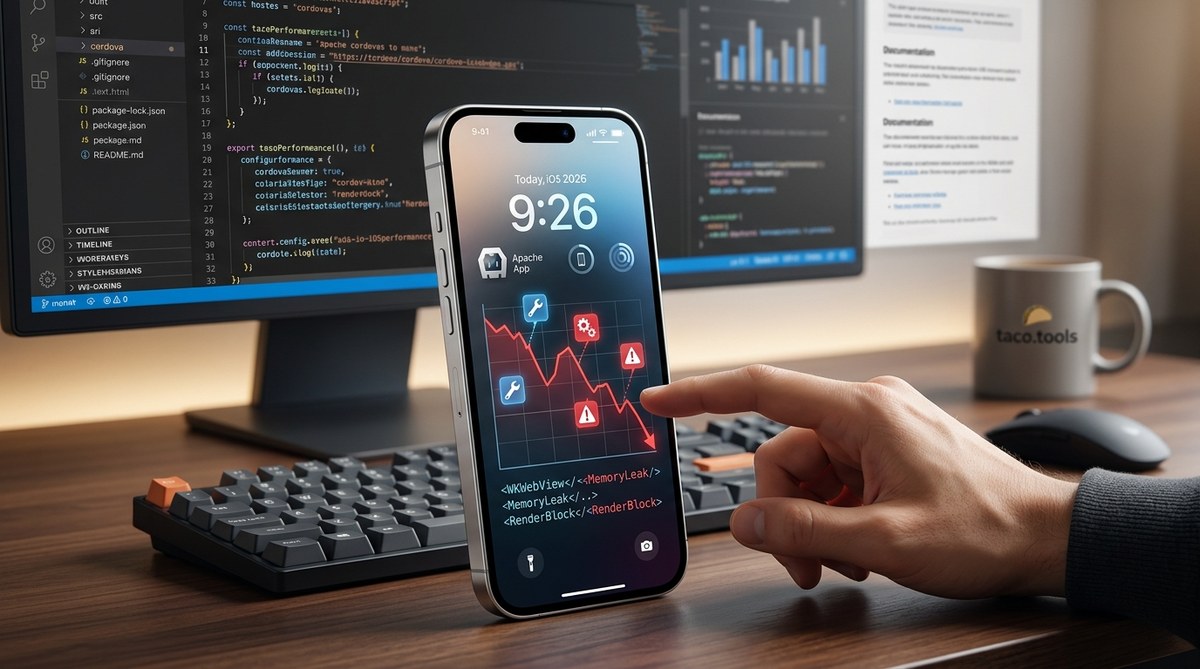
Apple added a hidden performance dashboard for developers. On your iPhone, go to Settings > Developer Options > Performance Monitor. It shows real-time frame rates and memory usage for your Cordova app. If the frame rate drops below 30 fps, you have a rendering problem.
The Top 3 Causes of Slowdown (And How to Fix Each One)
Here are the most common reasons your Cordova app is tanking on iOS 26.
1. Outdated Cordova Version
If you are still on Cordova 11 or 12, you are using an old WebView configuration that does not match iOS 26’s requirements. The fix is to update to Cordova 13.2 or later. This version includes a patch that tells iOS 26 to use the compatible rendering mode.
2. Too Many DOM Elements
iOS 26 struggles with pages that have more than 2,000 DOM nodes. A typical Cordova app with a complex menu and data tables can easily exceed this. Reduce the number of elements by using virtual scrolling or lazy loading for lists.
3. Heavy JavaScript on the Main Thread
iOS 26 does not like blocking calls on the main thread. Any synchronous JavaScript that takes longer than 50 milliseconds will cause a visible stutter. Move heavy processing to Web Workers. This is especially important for apps that parse JSON or process images.
A Practical Checklist to Apply Right Now
Use this list to go through your app and fix the most common issues.
- Update Cordova to version 13.2 or higher
- Enable hardware acceleration in your
config.xml - Set the WebView cache size to at least 20 MB
- Remove any custom CSS animations that use
filterorbackdrop-filter - Replace
position: fixedelements withposition: absolutewhere possible - Limit the number of images loaded at one time
- Use
lazyloading for all images below the fold - Disable the “Liquid Glass” effect for your app in the iOS manifest
- Compress all assets with Brotli instead of Gzip
- Run a memory leak test with the iOS 26 profiler
Common Mistakes That Make Things Worse
Many developers try to fix performance by guessing. Here is a table that shows what not to do and what actually works.
| Mistake | Why It Fails | Better Approach |
|---|---|---|
| Disabling all animations | iOS 26 still renders the page fully | Only disable CSS filter and backdrop-filter |
| Adding more RAM to the test device | The issue is CPU, not RAM | Profile CPU usage on a real user device |
| Using an older Cordova version | Lacks iOS 26 compatibility patches | Update to Cordova 13.2 |
| Clearing the app cache | iOS 26 re-caches aggressively | Set explicit cache headers in your server config |
| Removing all third-party plugins | Some plugins are fine | Test each plugin separately with the profiler |
When to Use Native Plugins Instead of JavaScript
Some tasks are better handled by native code. If your app does heavy image processing or real-time data streaming, consider using a Cordova plugin that calls native iOS functions. This avoids the WebView bottleneck entirely.
For example, instead of processing images with JavaScript, use the cordova-plugin-image-handler that uses iOS’s native image library. It is faster and uses less memory.
Expert advice: “The biggest mistake I see is developers trying to optimize JavaScript when the real problem is the WebView configuration. Always check your WebView settings first. A single flag in config.xml can double your frame rate.” — Maria Chen, senior mobile architect at AppBridge
How to Test Your Fixes
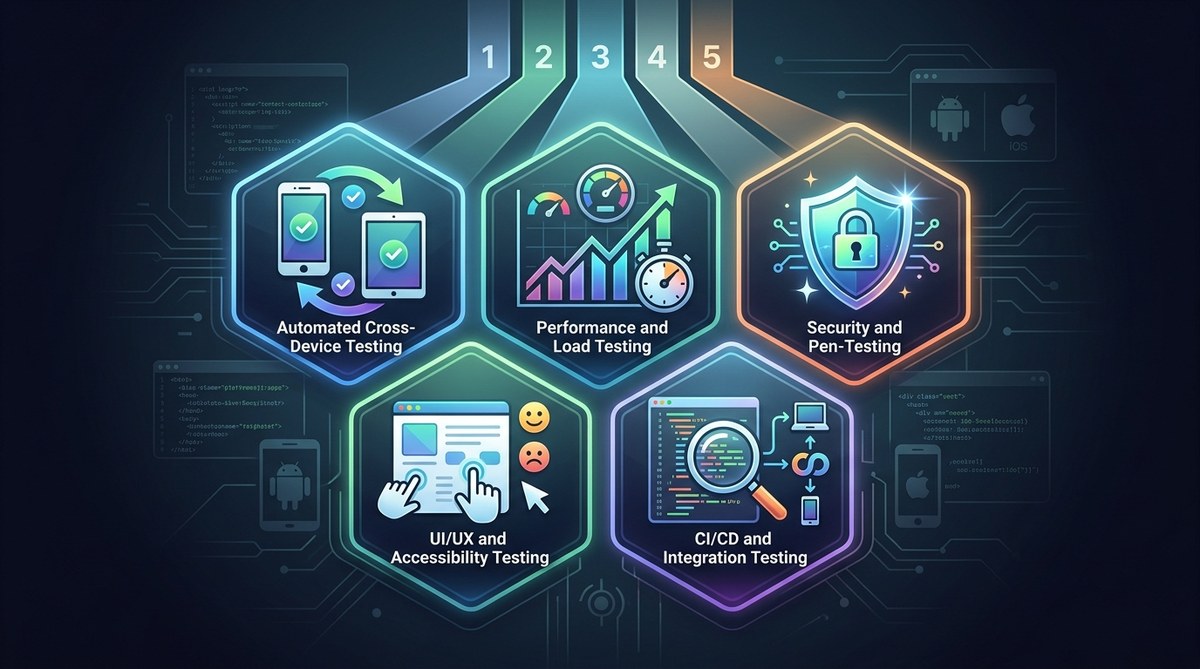
After you apply changes, you need to confirm they work. Do not rely on emulators. Test on a real iPhone running iOS 26.
- Run your app for 10 minutes with the performance monitor open.
- Check the average frame rate. It should stay above 50 fps.
- Switch between your app and other apps three times. Watch for lag.
- Open a dialog box. Measure how long it takes to appear. It should be under 200 milliseconds.
- Scroll through a long list. There should be no stuttering.
If you pass all five tests, your fix is solid.
What to Do If Performance Is Still Bad
Sometimes the issue is deeper. Maybe your app uses a lot of third-party APIs that are slow on iOS 26. Or maybe your app has a memory leak that only shows up after hours of use. In that case, you need to do a deeper audit.
Consider switching from HTTP/1.1 to HTTP/2 for your API calls. iOS 26 handles multiplexed connections much better. Also, look at your database queries. If you are using SQLite directly from Cordova, move to a REST API that caches results.
You can also learn more about optimizing deployment strategies for Cordova apps in 2026 to ensure your server side is not the bottleneck.
The Right Mindset for iOS 26 Performance
iOS 26 is not your enemy. It is a stricter environment that rewards clean, efficient code. Think of it as a wake-up call. Your Cordova app might have been running on old assumptions that no longer hold. Now you have a chance to make it better.
Every performance fix you apply today will also help when iOS 27 arrives. These optimizations are not temporary. They are the foundation for a stable app.
If you want to go deeper, check out our guide on mastering performance optimization for hybrid apps with Apache Cordova. It covers advanced topics like memory profiling and GPU acceleration.
Your Next Steps
Take a deep breath. Your app is not broken. It just needs a tune-up.
Start with the checklist above. Update Cordova first. That single change fixes most problems. Then profile your app and address the top bottleneck. Do not try to fix everything at once. One change at a time, test, and move on.
Your users will notice the difference. And you will sleep better knowing your app runs smoothly on the latest iOS. You have the tools. You have the knowledge. Now go make your Cordova app great again on iOS 26.