Building a hybrid app with Cordova in 2026 is still one of the most flexible ways to reach both iOS and Android users with a single codebase. But your app is only as strong as the plugins you choose to bridge the gap between web and native features. As mobile OS updates roll out and new hardware capabilities appear, the plugins that worked two years ago might not be the best fit today. That’s why I put together this list of five essential Cordova plugins that should be on your radar right now. Whether you’re starting a new project or maintaining an existing one, these plugins will save you time and keep your app feeling native.
The five essential Cordova plugins in 2026 are Camera, Geolocation, File, InAppBrowser, and Push Notifications (via Firebase). These plugins handle the most common native needs: capturing media, tracking location, managing files, opening external URLs, and sending real-time alerts. Choosing the right versions and keeping them updated is critical for performance and security.
## Why the Right Plugin Stack Matters More Than Ever
Apache Cordova remains a solid choice for cross-platform development, but the ecosystem moves fast. Platforms like Android and iOS change their APIs every cycle, and outdated plugins can crash your app or trigger App Store rejections. Staying on top of the best Cordova plugins 2026 offers ensures you’re not fighting against deprecation warnings. A well-chosen plugin reduces the amount of native code you have to write and keeps your project maintainable. If you’re new to plugin development, check out our guide on https://taco.tools/mastering-cordova-plugin-development-for-cross-platform-compatibility/ for a deeper look at how plugins work under the hood.
## 1. Camera Plugin (cordova-plugin-camera)
The camera plugin is still the go‑to for capturing photos and videos from within your app. Whether you’re building a social app, a document scanner, or a product catalog, users expect to snap a picture or pick one from their gallery. In 2026, the plugin supports both the old `Camera.PictureSourceType` and newer API levels.
**What it does well:**
– Captures images with a native camera interface
– Lets users choose from the photo library
– Returns base64 data or file URIs
– Works on Android 13+ and iOS 17+ without extra configuration
**A simple installation:**
cordova plugin add cordova-plugin-camera
Then in your JavaScript:
navigator.camera.getPicture(onSuccess, onFail, {
  quality: 80,
  destinationType: Camera.DestinationType.FILE_URI,
  sourceType: Camera.PictureSourceType.CAMERA
});
One common mistake is forgetting to handle permissions on Android. The plugin now handles runtime permission requests automatically, but you still need to declare the `CAMERA` and `WRITE_EXTERNAL_STORAGE` permissions in your `config.xml`. If you run into issues, our article on https://taco.tools/how-to-integrate-native-device-features-into-your-cordova-apps-seamlessly/ can walk you through the troubleshooting steps.
## 2. Geolocation Plugin (cordova-plugin-geolocation)
Location features are everywhere: ride‑hailing apps, weather apps, and even simple “find nearest store” buttons. The geolocation plugin gives you access to the device’s GPS and network‑based location. In 2026, the plugin has been updated to use the best available provider automatically, so you don’t have to choose between accuracy and battery life.
**Key benefits (bulleted list):**
– Works with a single API for both iOS and Android
– Supports high‑accuracy mode (GPS) for fitness apps
– Falls back to WiFi and cell tower triangulation when GPS is off
– Provides continuous location watching for movement tracking
**A word of caution:** Apple has tightened privacy rules. If your app requests “always” location access, you need to provide a compelling reason in the `NSLocationAlwaysAndWhenInUseUsageDescription` key. The plugin exposes these settings through the standard `config.xml` preferences.
When you need to integrate location with other services like maps or geofencing, it’s helpful to understand the full workflow. Our guide on https://taco.tools/how-to-streamline-your-cordova-development-workflow/ gives practical tips for connecting these pieces.
## 3. File Plugin (cordova-plugin-file)
File system access is one of those features that seems simple but can get messy without a good plugin. The `cordova-plugin-file` lets you read, write, and manage files on the device’s internal and external storage. It’s essential for apps that download documents, save offline data, or export user‑generated content.
**Common use cases:**
– Download PDFs and save them to the Downloads folder
– Cache images for offline viewing
– Write log files for debugging
– Read configuration files from the app bundle
**Installing the file plugin:**
cordova plugin add cordova-plugin-file
To get a file path for writing, use `cordova.file.dataDirectory` on Android or `cordova.file.documentsDirectory` on iOS. A typical pattern:
window.resolveLocalFileSystemURL(cordova.file.dataDirectory, function (dir) {
  dir.getFile("backup.json", { create: true }, function (file) {
    file.createWriter(function (writer) {
      writer.write("some data");
    });
  });
});
**Potential pitfalls:** On Android 10 and later, scoped storage can make external storage access tricky. The plugin now handles scoped storage automatically for the app‑specific directories, but if you need to access shared folders (like Downloads), you may need additional permissions.
For a full comparison of storage approaches, see the table below:
| Storage Type | Plugin Method | Android Scoped Storage Support | iOS Support |
|———————–|———————————–|——————————–|————-|
| App‑private data | `cordova.file.dataDirectory` | Yes (no extra permissions) | Yes |
| External public files | `cordova.file.externalRootDirectory` | Requires MANAGE_EXTERNAL_STORAGE | N/A |
| Temporary cache | `cordova.file.tempDirectory` | Yes | Yes |
## 4. InAppBrowser Plugin (cordova-plugin-inappbrowser)
Every app needs to show a web page without leaving the app. The InAppBrowser plugin opens URLs in a native browser window that stays inside your Cordova view. It’s perfect for OAuth flows, displaying terms of service, or embedding a simple web portal.
**Why it’s still essential in 2026:**
– Full control over the browser UI (back button, close button, toolbar)
– Can inject JavaScript into the loaded page (useful for scraping or auto‑filling forms)
– Supports custom schemes like `myapp://callback` for deep linking
**Installation and basic usage:**
cordova plugin add cordova-plugin-inappbrowser
var ref = cordova.InAppBrowser.open('https://example.com', '_blank', 'location=yes');
ref.addEventListener('loadstop', function() {
  console.log('Page finished loading');
});
One thing to watch out for: on iOS, if you use `_blank` with `hidden=yes` to preload a page before showing it, the plugin will load the URL but not display anything until you call `ref.show()`. This can speed up perceived performance for frequently visited pages.
If you’re automating your build and testing pipeline, you might want to combine the InAppBrowser with headless testing tools. Our article on https://taco.tools/how-to-automate-cordova-builds-with-github-actions/ shows how to set up CI/CD that includes browser actions.
## 5. Push Notifications (cordova-plugin-firebase-messaging)
Push notifications are no longer a nice‑to‑have; users expect them for everything from chat messages to daily reminders. The `cordova-plugin-firebase-messaging` plugin provides a unified interface to Firebase Cloud Messaging (FCM) on Android and APNs on iOS. It replaces the older `phonegap-plugin-push` and gives you tighter integration with Firebase.
**What you get:**
– Receives data and notification payloads
– Supports notification channels on Android 8+
– Handles token registration and refresh
– Works with Firebase Analytics to track notification opens
**Installation and setup:**
cordova plugin add cordova-plugin-firebase-messaging
You’ll also need a `google-services.json` (Android) and `GoogleService-Info.plist` (iOS) from the Firebase Console. The plugin picks those up automatically during build.
FCMPlugin.getToken(function (token) {
  console.log("Device token: " + token);
});
FCMPlugin.onNotification(function (data) {
  if (data.wasTapped) {
    // Notification tapped from background
  } else {
    // Received while app is in foreground
  }
});
**A common mistake:** Relying on notification data to update the UI when the app is in the foreground. The plugin delivers the payload, but you have to call your own JavaScript function to update the view. Don’t assume the notification banner will refresh your page.
For a step‑by‑step integration, read our guide on It covers token storage, permissions, and handling edge cases like doze mode.
## Comparing the Five Plugins at a Glance
To help you decide which plugins to prioritize, here’s a table that summarizes their main characteristics:
| Plugin | Latest Version (2026) | Permission Handling | Key Dependency |
|—————————|———————–|———————|—————-|
| cordova-plugin-camera | 6.0.x | Runtime (auto) | None |
| cordova-plugin-geolocation| 5.1.x | Runtime (auto) | None |
| cordova-plugin-file | 7.0.x | Scoped (auto) | None |
| cordova-plugin-inappbrowser| 5.0.x | None | None |
| cordova-plugin-firebase-messaging| 8.0.x | Runtime (auto) | Firebase SDK |
All these plugins follow the standard `cordova plugin add` pattern, and each has a GitHub repo with documentation. They are actively maintained in 2026, meaning you can expect timely updates when new OS versions drop.
## A Practical Tip from a Fellow Developer
> **“Don’t blindly update plugins.”**
> I learned this the hard way when a minor update to the camera plugin broke my app’s image rotation on Android. Always test plugin updates on real devices before merging them into your main branch. And keep a `package.json` with exact version numbers to avoid surprise upgrades during team builds.
> — Sarah, senior mobile developer at a fintech startup
This advice holds especially true for the file plugin because changes in scoped storage handling can silently break file writes. If you want to avoid these surprises, our article on https://taco.tools/7-cordova-project-pitfalls-and-how-to-avoid-them-in-2026/ covers other common traps.
## A Quick Installation Workflow (Numbered List)
If you’re setting up a new Cordova project in 2026, here’s a step‑by‑step to add all five plugins:
1. Create your Cordova project: `cordova create MyApp com.example.myapp MyApp`
2. Add your target platforms: `cordova platform add android` and `cordova platform add ios`
3. Install the camera plugin: `cordova plugin add cordova-plugin-camera`
4. Install the geolocation plugin: `cordova plugin add cordova-plugin-geolocation`
5. Install the file plugin: `cordova plugin add cordova-plugin-file`
6. Install the InAppBrowser plugin: `cordova plugin add cordova-plugin-inappbrowser`
7. Install the Firebase messaging plugin: `cordova plugin add cordova-plugin-firebase-messaging`
8. Add your Firebase config files (`google-services.json` and `GoogleService-Info.plist`)
9. Run `cordova build android` (or `ios`) to verify everything compiles
That’s it. You now have a solid foundation for handling media, location, files, external links, and push notifications. From here, you can start building out your app’s specific features.
## Deciding When to Use a Custom Plugin
Sometimes the off‑the‑shelf plugins don’t fit your exact needs. Maybe you need to control a hardware sensor that no public plugin supports, or you want tighter integration with an SDK that isn’t wrapped yet. In that case, writing a custom plugin is the way to go. The process involves creating a JavaScript bridge and then implementing native code for each platform. For a complete walkthrough, see
## Future-Proofing Your Plugin Choices
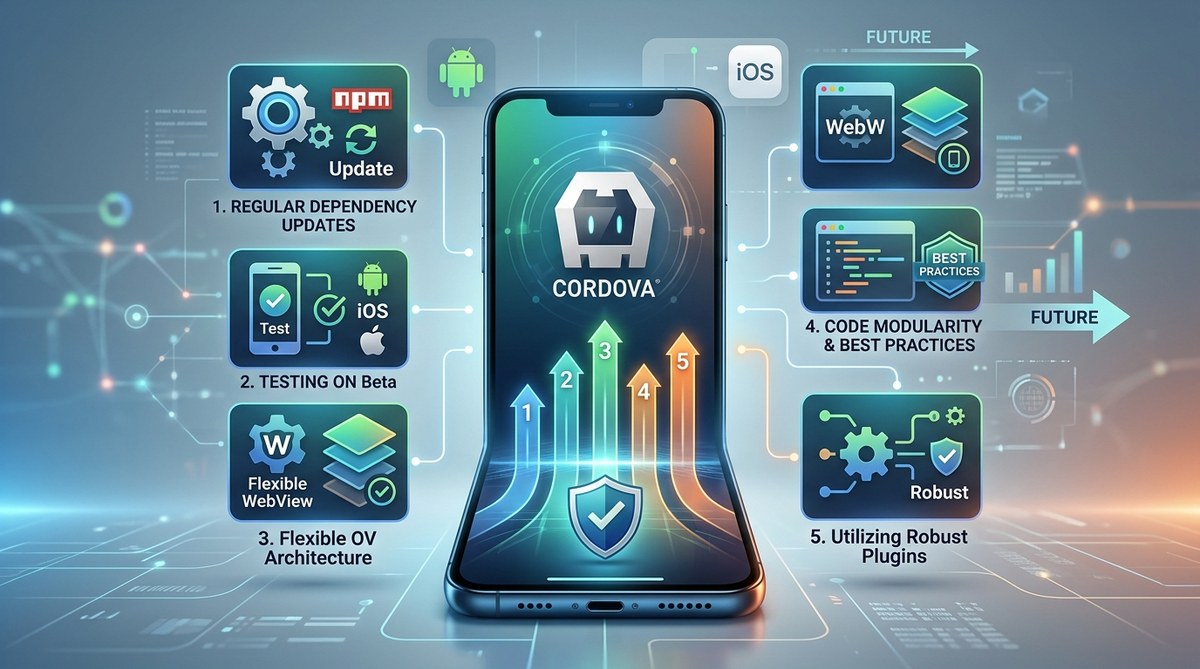
Mobile operating systems will continue to evolve. Here are a few best practices to keep your plugin stack healthy:
– **Use semantic versioning:** Pin your plugins to a major version (e.g., `~6.0.0`) to receive bug fixes without breaking changes.
– **Monitor the plugin’s GitHub repo:** Watch for issues tagged “breaking” or “deprecation” before you upgrade.
– **Test on beta OS versions:** Android Beta and iOS Developer Beta can reveal plugin problems before they hit the public.
– **Remove unused plugins:** Every extra plugin adds build time and potential conflict risk. Audit your `config.xml` regularly.
Our article on https://taco.tools/5-ways-to-future-proof-your-cordova-apps-against-os-updates/ dives deeper into strategies like using conditional `
## One Last Piece of Advice
The best Cordova plugins 2026 can’t do everything for you. You still need to write clean front‑end code, optimize rendering, and handle offline states. But with the five plugins above, you’ll avoid writing native code for the most common functionality gaps. Install them, test them with real devices, and iterate.
If you run into a specific problem (like the camera returning a rotated image or geolocation failing on certain tablets), check the plugin’s issue tracker first. Chances are someone else has already posted a workaround. And if you build something particularly creative, consider contributing a solution back to the community.
Now go turn that hybrid app idea into a real download. Start with one plugin, add your feature, and keep moving forward. Your users will thank you.