Building a hybrid app that feels truly native can be a game changer. Cordova makes it possible to develop cross-platform mobile applications using familiar web technologies like HTML, CSS, and JavaScript. However, to unlock the full potential of your app, integrating native device features such as camera, GPS, accelerometer, or contacts is essential. This guide walks you through the process of integrating native device functionalities into your Cordova apps, helping you deliver a more engaging user experience.
Integrating native device features into your Cordova app involves selecting the right plugins, configuring them properly, and following best practices to ensure seamless functionality across platforms. This process enhances user engagement and app performance, making your hybrid app feel like a native one.
Understanding the Basics of Native Device Integration
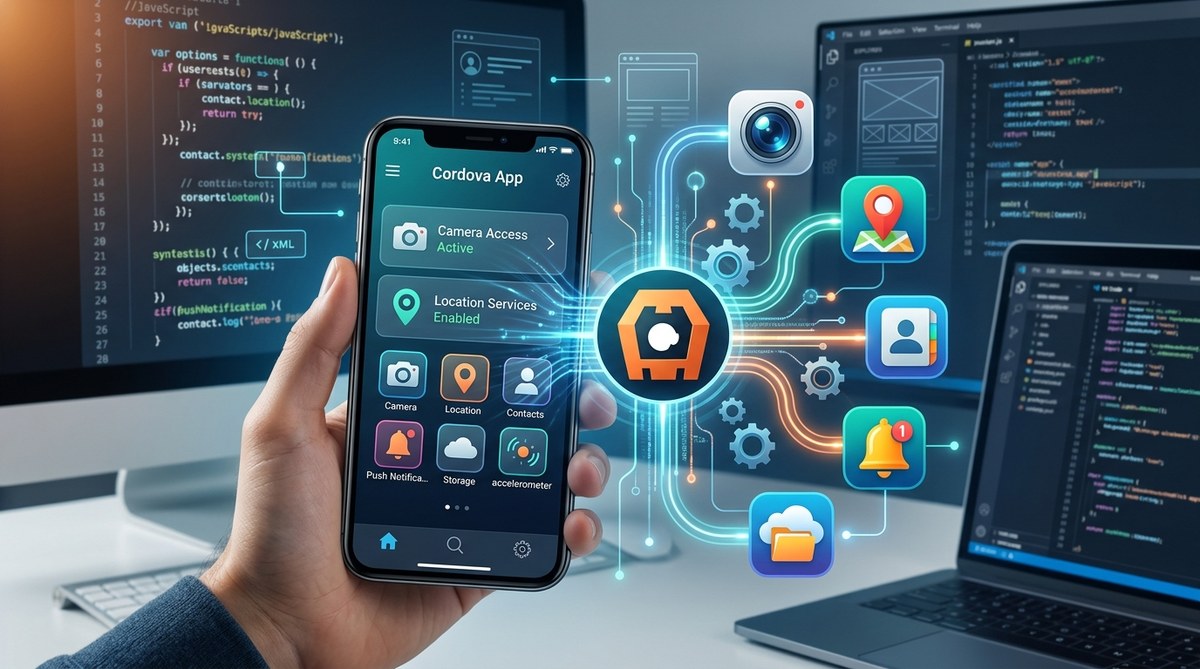
Cordova’s core strength lies in its ability to bridge web technologies with native device capabilities. It does so through plugins—small modules that enable access to hardware and device features. These plugins serve as the link between your JavaScript code and native code running on the device.
When you develop a Cordova app, you write your interface in HTML, style it with CSS, and add logic with JavaScript. To access device hardware, you include specific plugins. For example, to access the camera, you install the Cordova camera plugin. This setup allows you to invoke device features using simple JavaScript calls without worrying about platform-specific code.
Understanding the plugin ecosystem is crucial. Cordova offers a vast library of plugins for common features like camera, accelerometer, geolocation, contacts, file system, and more. Some plugins are maintained by the Cordova team, while others are community-developed. Always choose well-maintained plugins with good documentation to ensure stability.
Practical Steps to Integrate Native Device Features
Integrating native features into your Cordova app can be straightforward if you follow a structured process. Here’s a step-by-step guide:
1. Identify the features you need
Begin by listing the native functionalities your app requires. Common features include:
– Camera access for photos or video recording
– GPS for location tracking
– Accelerometer or gyroscope for motion detection
– Contacts for user data
– File system for storing data locally
– Notifications for user alerts
2. Install the necessary plugins
Once you’ve identified the features, find the appropriate Cordova plugins. The official Cordova plugin registry is a good starting point. To install a plugin, run commands like:
cordova plugin add cordova-plugin-camera
For example, to add camera access, you would execute the above command. Repeat this for each feature you want to incorporate.
3. Configure plugins and permissions
Some plugins require additional configuration or permissions, especially on Android and iOS. For instance, camera and location plugins need permissions defined in your platform-specific configuration files:
- For Android, modify
AndroidManifest.xmlif necessary. - For iOS, update
Info.plistwith relevant permission descriptions.
Always review plugin documentation for specific setup steps. This ensures your app requests the correct permissions at runtime, which is essential for user trust and app stability.
4. Use plugin APIs in your JavaScript code
After installation and configuration, you can invoke device features through JavaScript. For example, to open the camera and capture a photo:
navigator.camera.getPicture(
  function(imageData) {
    // Handle success
    var image = document.getElementById('myImage');
    image.src = "data:image/jpeg;base64," + imageData;
  },
  function(error) {
    // Handle error
    alert('Error capturing photo: ' + error);
  },
  {
    quality: 50,
    destinationType: Camera.DestinationType.DATA_URL
  }
);
This code snippet uses the camera plugin’s API to access the device camera and display the captured image.
5. Test extensively across platforms
Native features can behave differently on various devices. Always test your app on multiple Android and iOS devices to ensure consistent behavior. Use emulators for initial testing but validate on real hardware for accuracy.
6. Handle platform-specific quirks
Some plugins may require platform-specific tweaks. For example, plugin behavior might differ on iOS versus Android. Use conditional code to handle such cases and consult plugin documentation for best practices.
Best Practices for Native Device Feature Integration
Integrating native features isn’t just about plugin installation. Following best practices ensures your app remains reliable, secure, and user-friendly.
- Use well-maintained plugins only. Check the last update date, community support, and issue tracker.
- Request permissions at runtime instead of during app installation to improve user trust.
- Implement fallback mechanisms for devices that lack certain hardware capabilities.
- Optimize plugin calls to avoid performance bottlenecks. Use asynchronous calls where possible.
- Secure sensitive data by following platform-specific security guidelines.
- Keep plugins updated to benefit from bug fixes and new features.
“Always test native feature integration on multiple device types and OS versions. What works seamlessly on one device might have issues on another.”
Common Challenges and How to Overcome Them
While integrating native device features is manageable, several pitfalls can occur:
| Mistake | Explanation | Solution |
|---|---|---|
| Using outdated plugins | Plugins that haven’t been maintained may cause compatibility issues. | Stick to well-maintained plugins and check their last update date. |
| Ignoring platform-specific permissions | Failing to request permissions properly can block features. | Follow platform guidelines and test permission prompts. |
| Not handling errors gracefully | Crashes or unresponsive features hurt user experience. | Add error handling and fallback options. |
| Overloading the app with too many plugins | Excess plugins can bloat the app and cause conflicts. | Only include essential plugins and optimize code. |
Best technique: Use the latest version of Cordova and plugins to ensure compatibility.
Common mistake: Skipping permission requests or misconfiguring permissions, leading to feature access issues.
Expert Tips for a Smooth Integration
“Always test native features in real-world scenarios and on actual devices. Simulators can only go so far.”
To further enhance your app’s native capabilities, consider using the cordova-plugin-file for local storage or cordova-plugin-geolocation for location-based services. These plugins empower your app to perform complex tasks while maintaining a consistent user experience.
Additionally, if you want to extend your app’s native functionality beyond plugins, developing custom plugins is an option. Custom plugins allow you to access platform-specific APIs that aren’t covered by existing modules. You can learn more about creating custom plugins by visiting the Cordova plugin development resource.
Maintaining and Updating Native Features
Once integrated, keeping native features up to date is vital. Regularly check for plugin updates, especially when upgrading Cordova versions or migrating to new OS releases. Testing after each update ensures compatibility and security.
In case you encounter persistent issues, consider isolating problematic plugins or reaching out to community forums. The Cordova developer community is active and can provide guidance for tricky problems.
Connecting the Dots: Making Your App Feel Native
Integrating native device features effectively bridges the gap between web-based and native applications. It enhances user engagement, improves performance, and broadens your app’s capabilities. Remember, the goal isn’t just to add features but to do so in a way that feels seamless and reliable.
Begin by assessing your app’s needs, choose the right plugins, and follow best practices for configuration and testing. With patience and attention to detail, your Cordova app can deliver a genuinely native feel, satisfying even the most demanding users.
Enhancing Your Hybrid Development Journey
Incorporating native device features is just one part of building outstanding hybrid apps. For more advanced techniques or to streamline your workflow, consider exploring mastering Cordova plugin development. This knowledge will empower you to build custom solutions tailored to your unique requirements.
Staying current with updates, community insights, and platform guidelines will ensure your app remains reliable and competitive. Remember, the key is consistency and thorough testing.
Good luck with your native feature integrations. Your users will thank you for delivering a richer, more responsive app experience that feels as smooth as native.
Elevate Your Cordova Projects with Native Integration Mastery
Integrating native device features into your Cordova apps unlocks a world of possibilities. It transforms a simple hybrid app into a powerful tool that leverages the full potential of each device. Whether you’re adding camera capabilities or GPS tracking, following structured steps and best practices will make the process smoother.
Start small, test often, and iterate. With the right plugins and careful configuration, your app can run seamlessly across platforms. Keep your codebase lean by choosing plugins wisely and updating regularly.
By focusing on native integrations, you’re making your app more engaging and efficient. Your users will enjoy a smoother experience, and you’ll build confidence in your cross-platform development skills.
Happy coding, and may your next Cordova project be your best yet!