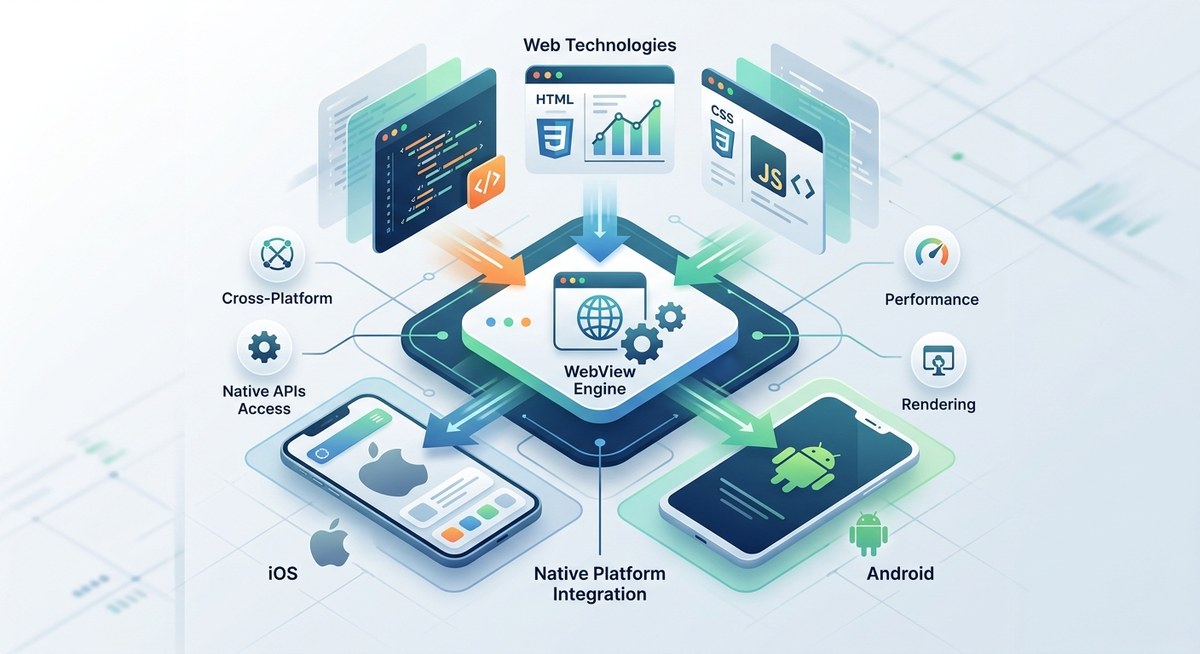
You have been there. You tweak one line of native C++ or Java in a Cordova plugin, run cordova build, and then wait. Two minutes. Five minutes. Longer. That wait breaks your focus, kills your momentum, and makes plugin development feel like a chore. In 2026, you do not need to accept that. Hot reloading for Cordova plugins is not a fantasy. It is a real workflow that saves hours every week, and this guide will show you exactly how to set it up.
Hot reloading a Cordova plugin lets you modify native code and see changes in seconds instead of minutes. You can skip full rebuilds by using symlinks, incremental compilation, and a live reload server for the JavaScript layer. This guide walks through three proven methods, compares their trade-offs, and shows you how to avoid common pitfalls that break the hot reload loop.
Why the Full Rebuild Cycle Hurts Your Productivity
Every time you run cordova build, the toolchain does a lot of work. It copies assets, compiles native code for each platform, links libraries, and packages everything into an installable binary. For a simple plugin change, maybe you changed one variable name or added a log statement. That small edit triggers the entire pipeline again.
The real pain shows up when you are debugging a tricky native crash. You add a print statement, rebuild, test, and realize you printed the wrong value. So you change it, rebuild, test again. Each iteration costs you precious minutes. Over a full day of debugging, you might lose an hour or more just waiting on builds.
Hot reload changes that. Instead of rebuilding the whole app, you update only the parts that changed. The app stays running on your device or emulator, and you see results almost instantly.
Method One: The Symlink Shortcut for Native Plugin Code
This is the fastest way to get a hot reload Cordova plugin workflow without any special tools. It works best when you are only changing native code inside your custom plugin.
Here is the idea. Cordova plugins live inside plugins/ in your project. When you run cordova build, the build system copies the plugin source into a platform-specific build folder. If you replace that copy with a symlink pointing back to your working directory, the build system will use your latest changes every time it compiles.
Follow these steps:
- Build your project once with
cordova buildso the platform folders exist. - Locate the copied plugin directory inside
platforms/android/orplatforms/ios/. It is usually under something likecordova-plugin-example/. - Delete that copied directory.
- Create a symlink in its place that points to your actual plugin source folder.
On macOS or Linux, that looks like this:
rm -rf platforms/android/app/src/cordova-plugin-example
ln -s /Users/you/project/plugins/cordova-plugin-example platforms/android/app/src/cordova-plugin-example
Now when you run cordova build, the compiler picks up your latest native source files. You still need to run the build command, but the incremental compiler only recompiles changed files. That cuts the build time from minutes to seconds.
Be careful with this approach. If you add new files to your plugin, the build system might not detect them. You may need to touch a file or run a clean build occasionally. Also, Windows users need to use mklink or a Git Bash symlink workaround.
Method Two: Live Reload for the JavaScript Layer
Your Cordova plugin is not just native code. It also has a JavaScript component that bridges the native calls to your app. That JavaScript layer can be hot reloaded using a standard live reload server.
Tools like cordova-plugin-livereload or a simple Node.js watcher can monitor your plugin’s JavaScript files. When you save a change, the watcher pushes the update to the running app over a WebSocket connection. Your app does not restart. The new JavaScript code replaces the old one in memory.
Here is what you need:
- A live reload plugin installed in your Cordova project.
- A file watcher that triggers on changes to your plugin’s
www/orjs/folder. - The app must be running on a device or emulator with the live reload client active.
The advantage here is speed. You can edit the JavaScript wrapper, save, and see the result in under a second. The native side stays untouched. This is ideal when you are adjusting how your plugin communicates data to the app layer.
The limitation is obvious. If you change native C++, Java, or Objective-C files, the live reload server does nothing. You need a different method for native changes.
Method Three: Incremental Native Compilation with Watch Mode
Android and iOS toolchains both support incremental builds. The trick is to run them in watch mode outside of the Cordova CLI so you get true hot reload behavior.
For Android, you can use Gradle’s watch mode inside the platforms/android/ folder:
cd platforms/android
./gradlew build --watch
This tells Gradle to monitor source files and recompile only the changed ones. When you modify a .java or .cpp file in your plugin, Gradle picks it up and rebuilds the native library. After the library compiles, you can copy the new .so or .jar into the running app directory and restart the app process manually.
For iOS, the situation is trickier because of Apple’s build system. You can use ninja or make with a file watcher like entr to recompile the plugin’s native code. Then you use adb push or rsync to copy the updated binary to your device.
This method gives you the closest thing to a true hot reload Cordova plugin experience. You edit, save, and within a few seconds the new native code is running on your device.
Comparison of Hot Reload Techniques
| Technique | Setup Time | Speed | Best For | Risk |
|---|---|---|---|---|
| Symlink shortcut | 5 minutes | Fast (incremental build) | Native code changes only | May miss new files |
| Live reload (JS) | 10 minutes | Instant | JavaScript wrapper changes | Does not affect native code |
| Incremental watch mode | 20 minutes | Very fast | Full native + JS changes | Requires manual file sync |
Each method has a place. If you are only tweaking JavaScript, use live reload. If you are deep in native code, use symlinks or watch mode. For a complete workflow, combine them.
Common Mistakes That Break Your Hot Reload Loop
Even with the right setup, a few things can ruin your hot reload session. Watch out for these.
Mistake 1: Forgetting to rebuild the native library after adding new source files. Incremental compilers only recompile files they know about. If you add a new .cpp file, the build system might not include it until you trigger a full build. Always do a clean build after adding new files, then go back to incremental mode.
Mistake 2: Using the wrong symlink target on Windows. Windows symlinks require special permissions or a developer mode setting. If your symlink points to a network drive or a path with spaces, the build system may fail silently. Test your symlink by running a command that reads the linked directory.
Mistake 3: Running the live reload server on a port that the app cannot reach. If your device is on a different network, the WebSocket connection fails. Use localhost for emulators and a static IP for physical devices.
Mistake 4: Not clearing the app cache between hot reloads. Some platforms cache native libraries aggressively. On Android, you may need to force-stop the app and clear its cache before the new library loads. A simple adb uninstall followed by adb install can fix this.
Expert advice: Keep a small shell script that performs a clean rebuild of just your plugin’s native code, then copies the output to the correct location. Run this script after every few hot reload cycles to prevent stale binaries from accumulating.
Setting Up a Complete Hot Reload Workflow in 2026
Here is a practical workflow that combines all three methods. This is what a production-ready setup looks like.
- Install a live reload plugin in your Cordova project. Configure it to watch your plugin’s JavaScript files.
- Create symlinks for your plugin’s native source directories inside the Android and iOS platform folders.
- Open two terminal windows. In the first, run
cordova run androidorcordova run iosto launch the app with live reload. - In the second terminal, navigate to
platforms/android/and run the incremental build watcher. - Edit your plugin’s native code. The watcher recompiles. The app is still running. You may need to restart the app process to see the native changes, but that takes one second compared to a full rebuild.
This workflow reduces your iteration time from several minutes to under ten seconds.
You can read more about related optimizations in our guide on mastering Cordova plugin development for cross-platform compatibility. For broader performance improvements, check out how to maximize cross-platform performance in Cordova apps.
Testing Your Hot Reload Setup
Before you trust this workflow with real debugging, test it with a simple change. Add a log statement to your plugin’s native code. Save the file. Watch the watcher recompile. Restart the app. If you see your log message, the hot reload loop is working.
If you do not see the log, check these things:
- Is the symlink pointing to the correct directory?
- Did the watcher detect the file change?
- Did you restart the app process after the native library updated?
- Is the app using the cached version of the library?
A quick way to verify is to change a string in the JavaScript layer. If the live reload picks that up but the native change does not, your symlink or watcher is the problem.
When Hot Reload Is Not the Right Choice
Hot reload is powerful, but it is not a silver bullet. If you are changing the plugin’s plugin.xml file, adding new permissions, or modifying the build configuration, you need a full rebuild. Those changes affect how Cordova packages the plugin, and they cannot be hot reloaded.
Similarly, if you are working on iOS and your changes involve the manifest or signing, a full rebuild is safer. Apple’s security model does not allow dynamic library loading in the same way Android does. For iOS, you may need to rely more on the JavaScript live reload and only do full builds when native code changes are critical.
Keep Your Tooling Updated
The Cordova ecosystem evolves. In 2026, many developers use Cordova with frameworks like Ionic or custom build pipelines. Make sure your live reload plugin and build tools are up to date. Older versions may not support the latest Android or iOS SDKs.
If you are using a custom CI pipeline, you can integrate hot reload checks into your development branch. Let your CI run a full build once, then let developers use hot reload for iteration. That keeps the final build clean while giving you speed during development.
For more on automating your builds, see our guide on how to automate Cordova builds with GitHub Actions.
Your Next Step to Faster Plugin Development
Stop treating every plugin change like a major release. Set up the symlink shortcut today. Add a live reload server for your JavaScript layer. Run an incremental watcher for native code. The total setup time is under an hour, and the time you save will pay for itself in the first day of debugging.
Open your terminal. Pick one method from this guide. Implement it. Test it. Then add the next method. Before you know it, you will wonder how you ever lived without a hot reload Cordova plugin workflow.