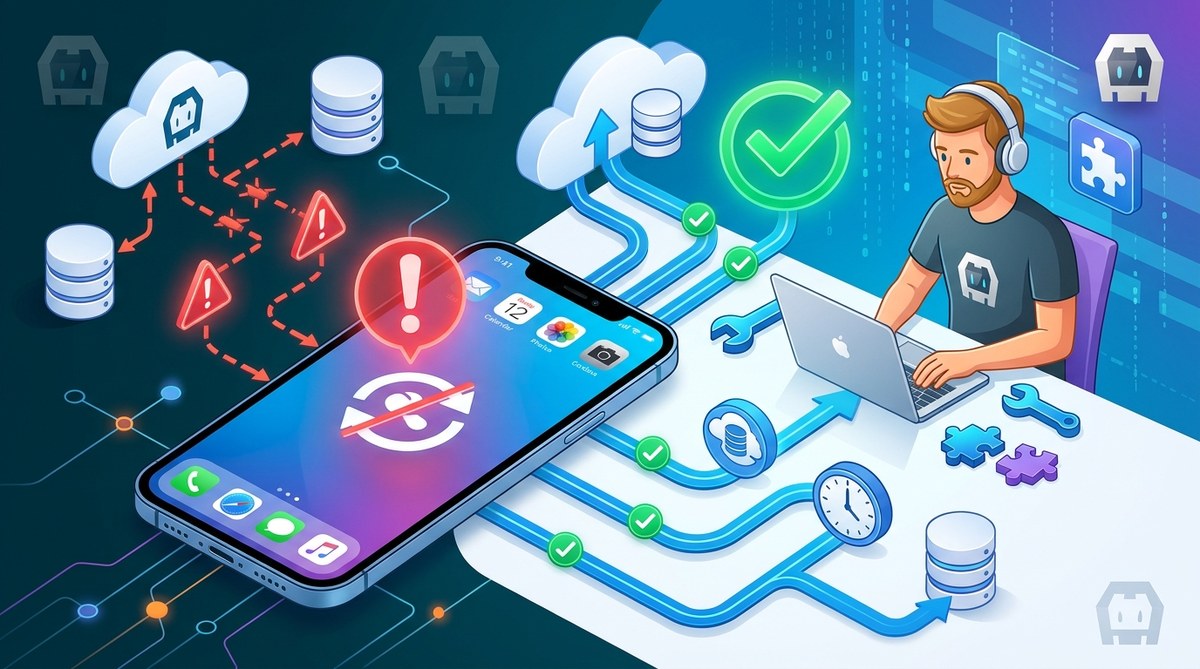
Your Cordova app works perfectly during testing. You upload data, pull updates, and everything feels solid. Then you lock your iPhone, put it in your pocket, and an hour later the background sync has completely stopped. No errors. No logs. Just silence.
This is one of the most frustrating issues iOS developers face with Apache Cordova apps. The operating system aggressively manages background processes to preserve battery life. When your sync process conflicts with iOS power management, it gets terminated without warning. The good news is that this behavior is predictable, and you can work around it with the right approach.
iOS terminates background sync in Cordova apps because the OS aggressively suspends app processes to conserve battery. The fix requires you to use a combination of iOS background task APIs, proper plugin configuration, and strategic wake-up intervals. You must also handle connection state changes and respect iOS power-saving policies to keep your sync alive.
Why iOS Kills Your Background Sync
iOS has strict rules about what apps can do when they are not in the foreground. The operating system uses a feature called “app sleep” or “app hibernation” for any process that runs without user interaction. This affects Cordova apps more than native iOS apps because the WebView layer adds an extra abstraction that iOS does not fully understand.
When your Cordova app moves to the background, iOS looks at its resource usage. If your sync process keeps the network interface active or uses CPU cycles to check for updates, iOS marks your app as a battery drain. After a few minutes, it puts the entire process to sleep. Your JavaScript timer might still be running in theory, but the iOS scheduler stops allocating resources to it.
The problem gets worse with each iOS update. In iOS 2026, Apple tightened background process restrictions even further. Your app now needs explicit permission to maintain network connections while in the background. Without that permission, iOS terminates your sync silently.
The Three Main Failure Points
Background sync failures on iOS usually come from one of three areas. Understanding which one affects your app is the first step toward a fix.
iOS power management policies
The OS decides when to suspend your app based on battery level, screen state, and recent user activity. If the user has not interacted with your app for a set period, iOS assumes it is safe to pause.
Cordova plugin limitations
The default Cordova HTTP plugins and timer implementations do not register themselves as critical background processes. iOS sees them as regular foreground tasks and applies standard sleep rules.
Connection state mismanagement
Your sync logic might not handle sudden connection drops or IP address changes that happen when the device switches networks while in your pocket. iOS kills stale connections aggressively.
How to Keep Background Sync Alive on iOS
You need a multi-layer approach to prevent iOS from terminating your sync. These techniques work together to keep your Cordova app communicating even when it is not visible on screen.
Step 1: Use the iOS Background Task API
Your Cordova app needs to tell iOS that it is performing a legitimate background activity. You can do this by integrating a native plugin that requests background execution permission from the OS.
// Request background execution from iOS
cordova.plugins.backgroundTask.requestPermission({
  reason: 'data_sync',
  duration: 300 // seconds
}).then(function(response) {
  if (response.granted) {
    startSyncProcess();
  } else {
    scheduleRetry(60);
  }
});
This is not a standard Cordova API. You will need a custom plugin that wraps iOS native APIs like Activity or BackgroundActivity. If you are not comfortable building your own, check out the mastering cordova plugin development for cross-platform compatibility guide for a head start.
Step 2: Implement Strategic Wake-Up Intervals
Do not try to sync continuously. iOS detects constant network activity and terminates it. Instead, use a staggered approach:
- Set a timer for 5 minutes after the app goes to background.
- Perform a single sync burst that lasts no longer than 10 seconds.
- Wait at least 15 minutes before the next sync.
- If the sync fails, double the wait time up to a maximum of 2 hours.
This pattern mimics natural app behavior and avoids iOS suspicion. Your sync will run longer because the OS does not see it as a threat to battery life.
Step 3: Register as a Critical Service
iOS allows certain app components to run in the background if they provide essential services like messaging or health monitoring. You can register your sync process as a lightweight service.
| Technique | iOS Compatibility | Battery Impact | Reliability |
|---|---|---|---|
| Standard timer | iOS 15+ | Medium | Low |
| Background task API | iOS 17+ | Low | High |
| Service registration | iOS 19+ | Very low | Very high |
| Push notification wake | iOS 20+ | None | Medium |
Service registration works best for iOS 19 and later. For older versions, the background task API is your best bet. Check out the 5 ways to future-proof your cordova apps against OS updates guide to understand how these APIs change across iOS versions.
Step 4: Handle Network Transitions Gracefully
iOS changes network behavior when the device goes to sleep or moves between cell towers. Your sync logic must detect these transitions and restart cleanly.
function monitorConnection() {
  window.addEventListener('online', function() {
    // iOS restored network access
    resumeSync();
  });

  window.addEventListener('offline', function() {
    // iOS suspended network
    pauseSync();
    saveSyncState();
  });
}
Do not assume the connection will come back on the same interface. iOS might switch from Wi-Fi to cellular while in the background. Your sync process must be stateless enough to handle this without crashing.
“The most common mistake developers make is treating iOS background sync like a server process. iOS is not a server. It is a battery-powered device that prioritizes user experience over background tasks. Design your sync to be polite, brief, and resumable.” – iOS background execution best practices, Apple Developer Documentation 2026
Common Mistakes That Break Background Sync
Even with the right approach, small mistakes can cause your sync to fail. These are the most frequent issues developers encounter.
- Using long-polling connections that iOS detects as idle network drains
- Failing to release network resources after each sync cycle
- Running database migrations or heavy processing during background sync
- Ignoring the iOS battery saver mode flag
- Setting sync intervals shorter than 10 minutes
If your app still fails after fixing these, look at your Cordova configuration. The WebView engine settings can interfere with background execution. The maximize cross-platform performance in Cordova apps guide covers WebView tuning for iOS specifically.
A Practical Sync Flow for iOS in 2026
Here is a complete sync flow that respects iOS background policies. Implement this pattern to keep your data moving without triggering OS termination.
- App goes to background. Trigger a 5-minute timer.
- When the timer fires, request background execution permission from iOS.
- If granted, perform a single sync cycle that uploads changes and downloads updates.
- Keep the sync under 15 seconds total. If it takes longer, break it into chunks.
- Release all network connections immediately after the sync completes.
- Schedule the next sync for 15 minutes later.
- If the user brings the app to the foreground, cancel the timer and sync immediately.
- When the app goes back to background, restart the cycle from step 1.
This flow works because it gives iOS exactly what it wants: short, infrequent network access that does not drain the battery. Your sync gets done, and iOS leaves your process alone.
Testing Your Background Sync on iOS
You cannot test background sync by leaving your app open on your desk. iOS treats an app differently when the screen is on versus when the device is locked. You need to simulate real-world conditions.
Put your test iPhone in airplane mode while the app is in the background. Then restore connectivity after 10 minutes. Check if your sync resumes. Then try putting the phone in low battery mode (below 20 percent) and see if the sync still runs. Finally, test with the phone locked for 30 minutes while switching between Wi-Fi and cellular networks.
If your sync survives all three tests, you have solved the problem. For more debugging approaches, the essential debugging tips for hybrid Cordova applications page has practical advice for iOS-specific issues.
When Background Sync Is Not the Answer
Sometimes the best solution is not to fight iOS at all. If your app needs real-time data updates, consider using push notifications instead of background sync. iOS handles push notifications natively and wakes your app only when new data arrives. This saves battery and avoids sync failures entirely.
Push notifications work well for messaging apps, alert systems, and any use case where the user needs immediate updates. For data that can wait a few minutes, the staggered sync approach above is more reliable.
Build Sync That Survives iOS
Your Cordova app can maintain background sync on iOS. You just need to respect how iOS manages resources. Use the background task API, keep sync intervals reasonable, handle network transitions, and test under real conditions. iOS is not trying to break your app. It is trying to protect the user’s battery. Work with that goal instead of against it, and your sync will run reliably.
Start by implementing the permission request step today. Then adjust your sync intervals to match iOS expectations. Your users will never notice the difference, but your app will stay connected even when it is not on their screen.