Deep linking is one of those features that separates a polished app from a frustrating one. When a user taps a link on their phone and lands exactly on the right screen inside your app, they feel like everything just works. When it breaks, they bounce. For Cordova developers, getting deep linking right means bridging the gap between the web and native environments. And the good news is that you already have most of the skills you need.
Deep linking lets your Cordova app respond to URLs, sending users directly to specific content instead of the home screen. This guide covers setting up custom URL schemes for iOS and Android, configuring universal links and app links, handling incoming links in your JavaScript code, and testing everything end to end. By the end, your hybrid app will offer a smooth, native-like navigation experience that keeps users engaged with your content.
What Deep Linking Actually Means for Your Cordova App
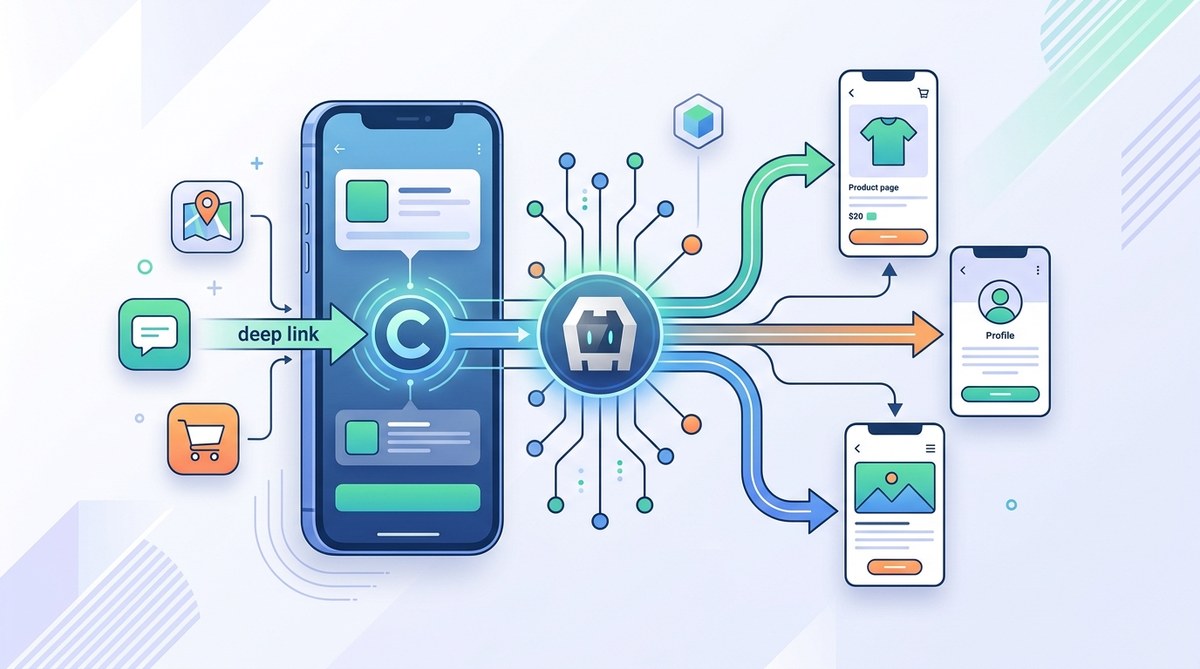
Deep linking is the practice of using a URL to open a specific page or piece of content inside a mobile app. Instead of launching the app to its default screen, a deep link routes the user to a product page, a settings panel, a chat thread, or any other internal destination. For a Cordova app, that URL might come from an email, a text message, a push notification, or even a QR code scanned in a coffee shop.
Your Cordova app runs inside a WebView, so deep linking involves two layers. First, the operating system needs to recognize the URL and open your app. Second, your JavaScript code needs to parse that URL and navigate to the right view. Both layers must work together. If either fails, the user sees a broken experience.
There are two main approaches. Custom URL schemes like myapp://product/123 have been around for years. They work but can conflict with other apps that register the same scheme. Then there are universal links on iOS and app links on Android. Those use standard HTTPS URLs and verify ownership through a file hosted on your domain. They are more reliable and secure.
Why Your Hybrid App Needs Deep Linking in 2026
Users expect apps to feel connected to the rest of their phone. If someone clicks a link to a recipe, they do not want to land on a generic home screen and tap around to find it. They want the recipe immediately. Deep linking delivers that expectation.
For Cordova developers, deep linking also helps with user retention. When you send a push notification about a new message or a sale, a deep link takes the user straight to that content. That reduces friction and increases the chance they will engage. In 2026, with so many apps competing for attention, every smooth interaction counts.
Deep linking also supports marketing campaigns. You can track which links drive installs and which ones lead to conversions. Combined with analytics, deep links give you data about user behavior that a plain home screen launch cannot provide.
If you are building a shopping app, a social feed, or a content platform, deep linking is not optional. It is a core part of the user experience.
Setting Up Deep Linking Step by Step
The process breaks down into four clear stages. Follow them in order, and you will avoid most common setup headaches.
1. Install the Right Plugin
Start with a Cordova plugin that handles deep link registration and event dispatching. The most popular option is the cordova-plugin-deeplinks or the branch-cordova-sdk if you want built in attribution tracking. For this guide, we will focus on the open source route.
Run this command in your project root:
cordova plugin add cordova-plugin-deeplinks
This plugin will handle the native side of registering your URL scheme and listening for incoming links. It also provides a JavaScript API you can use inside your app.
2. Configure iOS (Universal Links)
For iOS, you need to set up universal links. These use standard HTTPS URLs like https://example.com/product/123. When a user taps that link, iOS checks if your app is installed and if your server hosts a verification file.
Create a file called apple-app-site-association (no extension) and host it at the root of your domain. The file contains JSON that maps URL paths to your app identifier.
{
  "applinks": {
    "apps": [],
    "details": [
      {
        "appID": "TEAMID.com.example.app",
        "paths": ["*"]
      }
    ]
  }
}
Replace TEAMID with your Apple Developer Team ID and com.example.app with your app bundle ID. Upload this file to https://example.com/apple-app-site-association. The file must be served with the application/json MIME type and must be accessible without any redirects.
In your Cordova project, open config.xml and add the associated domains feature:
<platform name="ios">
    <config-file target="*-Info.plist" parent="com.apple.developer.associated-domains">
        <array>
            <string>applinks:example.com</string>
        </array>
    </config-file>
</platform>
3. Configure Android (App Links)
Android uses a similar concept called app links. You create a file named assetlinks.json and host it at https://example.com/.well-known/assetlinks.json. The JSON includes your app package name and SHA256 fingerprint.
[
  {
    "relation": ["delegate_permission/common.handle_all_urls"],
    "target": {
      "namespace": "android_app",
      "package_name": "com.example.app",
      "sha256_cert_fingerprints": ["YOUR SHA256 FINGERPRINT HERE"]
    }
  }
]
You can get the SHA256 fingerprint from your keystore using the Java keytool command. Host the file at the correct path and make sure it is served over HTTPS. Then in your config.xml, add an intent filter for your main activity:
<platform name="android">
    <config-file target="AndroidManifest.xml" parent="/manifest/application/activity[@android:name='MainActivity']">
        <intent-filter android:autoVerify="true">
            <action android:name="android.intent.action.VIEW" />
            <category android:name="android.intent.category.DEFAULT" />
            <category android:name="android.intent.category.BROWSABLE" />
            <data android:scheme="https" android:host="example.com" />
        </intent-filter>
    </config-file>
</platform>
4. Handle Incoming Links in JavaScript
With the native side configured, you need to write JavaScript that listens for deep link events. The plugin fires an event when your app receives a link. Here is the basic pattern:
document.addEventListener('deeplink', function(event) {
    var url = event.url;
    var path = url.replace(/^https?:\/\/example\.com\//, '');
    navigateToRoute(path);
}, false);
For cold starts (when the app is not running and the link launches it), you should also check for a pending link on app startup:
document.addEventListener('deviceready', function() {
    window.plugins.deeplinks.getPendingLink(function(url) {
        if (url) {
            var path = url.replace(/^https?:\/\/example\.com\//, '');
            navigateToRoute(path);
        }
    });
}, false);
Your navigateToRoute function should parse the path and route the user to the correct view inside your app. If you use a framework like React, Vue, or Angular inside your Cordova app, you can integrate this with your existing router.
| Common Mistake | Why It Causes Problems | How to Fix It |
|---|---|---|
| Hosting the verification file in the wrong folder | The OS cannot find the file and falls back to opening the browser | Place apple-app-site-association at the domain root and assetlinks.json in .well-known |
| Using HTTP instead of HTTPS | Both iOS and Android require HTTPS for verification | Get an SSL certificate and serve the files over HTTPS |
| Forgetting the cold start case | Links work when the app is running but fail when the app is closed | Always check for a pending link inside your deviceready handler |
| Hardcoding paths instead of using a router | Maintenance becomes a nightmare as your app grows | Use a routing library and map deep link paths to route names |
| Ignoring the MIME type for the iOS file | iOS will not verify the file if the MIME type is wrong | Serve apple-app-site-association with Content-Type: application/json |
Testing Your Deep Links Before Launch
Testing is where most projects stumble. You cannot just assume the files are correct. You have to test on real devices.
- Use the iOS simulator with the
xcrun simctl openurlcommand to simulate a universal link tap - On Android, use the
adb shell am startcommand with the-dflag to send a test deep link - Check the device logs on both platforms to see if the OS verified the association files
- Test both cold start and warm start scenarios. A link that works only when the app is already open is not a complete solution
- Try links from different sources: email apps, messaging apps, browser search results, and QR code scanners
- Ask a colleague to test on their device with a fresh install. Fresh installs often reveal issues that existing installs hide
The official documentation for both platforms provides diagnostic tools. On iOS, you can use the swcutil command line tool. On Android, the Play Store Console includes an app links tester under the Grow section.
If you want to strengthen your overall development process, take a look at this guide on streamlining your Cordova development workflow. A solid workflow makes it easier to iterate on deep link configurations without breaking other parts of your app.
“The best deep linking experience is one the user barely notices. If your link resolves correctly and the content loads instantly, they will not think about the technology at all. That is the mark of a well implemented deep link.”
* Veteran Cordova developer, 2026
Making Deep Links Feel Native in Your Cordova App
Once the basic setup is working, you can polish the experience. Add a loading indicator while the app resolves the deep link. If the link points to content that requires a login, let the user authenticate first and then redirect them to the intended page. Do not dump them on the home screen after login.
Consider implementing deferred deep linking. That is where a user who does not have your app installed taps a link, gets sent to the app store, installs the app, and then lands on the correct content after the first launch. This requires a service like Branch or a custom solution that stores the link parameters and retrieves them after install. For many Cordova apps, a third party service is the most practical path.
You should also handle errors gracefully. If a deep link points to content that no longer exists, show a friendly message and offer alternatives. A broken deep link that crashes the app or shows a blank screen will frustrate users and lead to bad reviews.
Keep your URL structure simple and consistent. Use paths that match your web application if you have one. That way, the same URL works both on the web and inside your app. Consistency reduces confusion for users and makes your code easier to maintain.
Finally, monitor your deep links in production. Use analytics to see which links are being tapped and whether they resolve correctly. If you notice a high drop off rate for a particular link, investigate whether the routing logic is faulty or the content is missing.
Your Deep Linking Implementation Checklist
You have the tools and the knowledge. Now it is time to put them into practice. Start with one platform and one link. Get that working perfectly. Then expand to the other platform and add more routes. Deep linking is not a feature you enable once and forget. It needs attention during every release, especially if you change your app’s routing structure.
Review your setup whenever you update your app bundle ID or team ID. Those changes break the association files and cause deep links to stop working. Keep the verification files under version control and include them in your deployment checklist.
If you run into issues, the Cordova community has extensive experience with deep linking. Check plugin documentation, test your configuration files with platform specific validators, and do not be afraid to ask for help.
Your users will thank you for the effort. Every time they tap a link and land exactly where they expected, your app earns a little more trust. That trust translates into higher engagement, better retention, and a stronger app overall. Go ahead and set up deep linking in your Cordova app today. The payoff is worth the work.