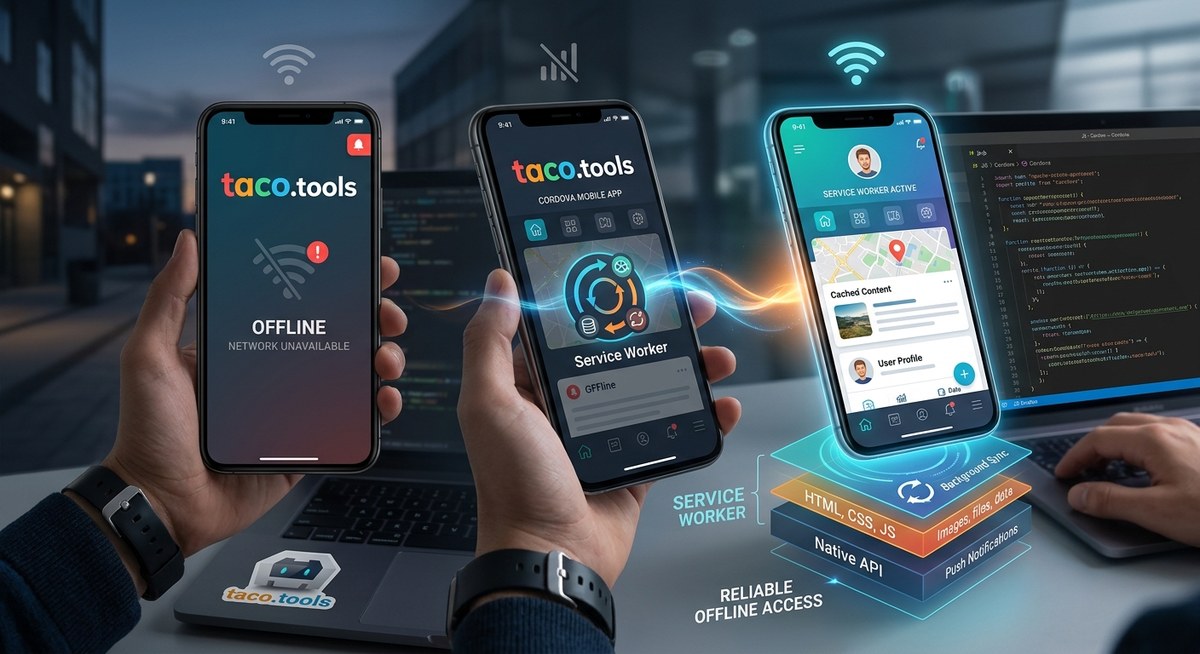
Your Cordova app works great with a strong signal. But the moment a user steps into a subway tunnel, a parking garage, or a rural area with spotty coverage, they get a blank screen and a spinning loader. That frustration usually leads to a one-star review. You have tried caching solutions, maybe even local storage hacks, but they never feel complete. There is a better way. A service worker acts as a programmable network proxy inside your app. It intercepts requests, serves cached assets, and handles background sync. For Cordova developers in 2026, adding a service worker is the single most effective move you can make to deliver a reliable offline experience.
A Cordova service worker offline setup lets your hybrid app function without a network connection. It caches HTML, JavaScript, CSS, and API responses so users can keep working in tunnels, airplanes, or remote areas. You get full control over cache strategies, background sync, and push notifications. This guide covers registration, caching patterns, and common mistakes to avoid.
The Real Cost of Network Dependency
Think about the last time you opened a rideshare app underground. The map failed, the price estimate never loaded, and you had to walk up a flight of stairs just to get a fare. That is exactly what your users experience when your Cordova app depends on live network requests for every screen.
Mobile users in the United States spend a lot of time in areas with weak signals. Subway commuters in New York, road trippers crossing the Rockies, and shoppers in big box stores with thick concrete walls all expect apps to work without constant connectivity. If your app fails in those moments, they will find a competitor that does not.
A Cordova service worker offline approach changes that. It caches the app shell and dynamic content so the app feels native, even when the network is absent.
What Makes Service Workers Different from Other Caching Methods
You might have used the Cordova cache plugin or stored data in localStorage. Those tools work for small pieces of data, but they do not intercept network requests. A service worker sits between your app and the network. It can:
- Serve cached HTML and assets instantly.
- Update content in the background.
- Sync data when the connection returns.
- Handle push notifications even when the app is closed.
This is not a replacement for a native plugin. It is a web standard that works inside the WebView. Since Cordova apps run in a WebView, you can register a service worker just like you would in a progressive web app.
How to Register a Service Worker in Your Cordova Project
Getting started is simpler than most developers expect. You register the service worker from your main JavaScript file, typically inside the deviceready event.
- Create a file called
sw.jsin the root of yourwwwfolder. - Register it in your
index.jsorapp.jsfile.
if ('serviceWorker' in navigator) {
    navigator.serviceWorker.register('sw.js')
        .then(function(registration) {
            console.log('Service Worker registered with scope:', registration.scope);
        })
        .catch(function(error) {
            console.log('Service Worker registration failed:', error);
        });
}
- Add the service worker scope to your
config.xmlif needed. Some Cordova plugins that modify the WebView configuration may require you to setAllowServiceWorkerto true. - Test the registration on a real device. Emulators sometimes behave differently with service workers.
Once registered, the service worker will start controlling pages after the next navigation or refresh. You can verify it by opening chrome://inspect on Android and checking the Application tab.
Three Caching Strategies That Work for Hybrid Apps
Not every request should be cached the same way. Static assets like your app’s CSS and JavaScript files need a different treatment than dynamic API responses. Here are three patterns that work well for Cordova service worker offline scenarios.
| Strategy | Best For | Cache Behavior | Risk |
|---|---|---|---|
| Cache First | App shell, icons, fonts | Serve from cache, update in background | Stale assets if versioning is missing |
| Network First | API data, user profiles | Try network first, fall back to cache | Slower on weak signals |
| Stale While Revalidate | News feeds, product listings | Serve cache instantly, fetch update | Double data usage on slow networks |
Cache First for the App Shell
Your app shell includes the HTML, JavaScript, and CSS that make up the user interface. These files rarely change between app versions. Use a cache first strategy to load them instantly.
self.addEventListener('fetch', function(event) {
    if (event.request.url.includes('/static/')) {
        event.respondWith(
            caches.match(event.request)
                .then(function(response) {
                    return response || fetch(event.request);
                })
        );
    }
});
Network First for Live Data
For content that must be fresh, like a user’s account balance or a flight status, use network first. If the network request fails, serve the last cached version.
Stale While Revalidate for Lists
Product listings, notification feeds, and comment threads can show stale data while fetching updates. Users see content immediately, and the update happens silently.
Common Mistakes That Break Offline Mode
Even experienced developers make errors when setting up a Cordova service worker offline. Here are the most frequent issues and how to avoid them.
- Forgetting to update the cache version. If you change assets but keep the same cache name, users get old files. Use a versioned cache key like
my-app-v2. - Caching API responses without a timeout. A cached API response from last month might show incorrect prices or sold-out items. Set a time-to-live for dynamic data.
- Ignoring the scope limitation. Service workers only control requests within their scope. If your app loads assets from a CDN, you need to handle those URLs explicitly.
- Blocking the install event. If your
installevent does not callevent.waitUntil(), the service worker may fail to activate. - Not handling the
activateevent. Old caches pile up and waste storage. Clean them during activation.
self.addEventListener('activate', function(event) {
    var cacheWhitelist = ['my-app-v2'];
    event.waitUntil(
        caches.keys().then(function(cacheNames) {
            return Promise.all(
                cacheNames.map(function(cacheName) {
                    if (cacheWhitelist.indexOf(cacheName) === -1) {
                        return caches.delete(cacheName);
                    }
                })
            );
        })
    );
});
Background Sync and Push Notifications
A Cordova service worker offline setup does not stop at caching. You can also use background sync to queue user actions. If a user submits a form while offline, the service worker stores the request and sends it when the connection returns.
self.addEventListener('sync', function(event) {
    if (event.tag === 'sync-messages') {
        event.waitUntil(sendQueuedMessages());
    }
});
Push notifications also work through the service worker. Even if your Cordova app is not in the foreground, the service worker can display a notification. This is especially useful for messaging apps, delivery tracking, or appointment reminders.
Expert advice: Always test background sync on a real device with airplane mode toggled on and off. Emulators often skip the sync event timing, giving you a false sense of reliability.
Debugging Service Workers in Cordova
Debugging a service worker inside a WebView is different from debugging in a browser. On Android, use Chrome DevTools by connecting your device and navigating to chrome://inspect. On iOS, Safari’s Web Inspector gives you access to the service worker tab.
Common debugging steps:
- Check the registration status in the Application panel.
- Look at the Cache Storage section to see what is stored.
- Use the
Updatebutton to force a new service worker. - Clear site data to reset all caches.
If the service worker refuses to register, check for HTTPS. Service workers require a secure context. For local development, localhost is treated as secure, but your production Cordova app must load assets over HTTPS.
Performance Gains Beyond Offline Access
A Cordova service worker offline strategy does more than handle lost connections. It also speeds up the app. When static assets come from the cache, they load instantly. There is no network latency for your app shell. This reduces the time to interactive and makes the app feel native.
You can also precache critical resources during the install event. This means the first visit after installation might take a moment, but every subsequent launch will be nearly instant. Combine this with the optimization tips in Boost Your Cordova App Performance with Effective Optimization Techniques for even better results.
Security Considerations for Service Workers in Cordova
Service workers run in a separate context from your app’s main thread. They have access to the fetch and cache APIs but cannot access the DOM or Cordova plugins directly. This isolation is good for security, but it means you cannot call a plugin from inside the service worker.
If you need to trigger a native feature after a sync event, you must send a message to the client page. Use self.clients.matchAll() and postMessage() to communicate.
self.clients.matchAll().then(function(clients) {
    clients.forEach(function(client) {
        client.postMessage({ type: 'SYNC_COMPLETE' });
    });
});
Also, be careful with the data you cache. If your app handles sensitive information like credit card numbers or health records, do not store them in the cache. Use the Cache-Control header to prevent caching of private data.
When a Service Worker Is Not Enough
Service workers are powerful, but they have limits. They cannot access the file system directly, wake the device from sleep, or run arbitrary native code. For those tasks, you still need Cordova plugins. The service worker handles the web layer, while plugins handle the native layer.
If your app needs to store large files offline, like videos or maps, consider combining the service worker with the File plugin. The service worker can cache small assets, and the File plugin can store larger binaries.
For a deeper look at plugin integration, check out How to Integrate Native Device Features into Your Cordova Apps Seamlessly.
Your Next Steps for a Reliable Offline Experience
A Cordova service worker offline setup is not a luxury anymore. It is a baseline expectation for mobile users in 2026. They will not tolerate an app that breaks when the signal drops. By adding a service worker, you give them a reliable experience that works in the subway, on a plane, or in a remote cabin.
Start small. Register the service worker, cache your app shell, and test on a real device. Then add network first strategies for your API data. Monitor the cache storage to make sure you are not wasting space. Finally, implement background sync for user actions that need to survive a lost connection.
Your users will notice the difference. They will stay engaged, leave better reviews, and keep using your app even when the network is not cooperating. That is the kind of reliability that builds trust and grows your user base.