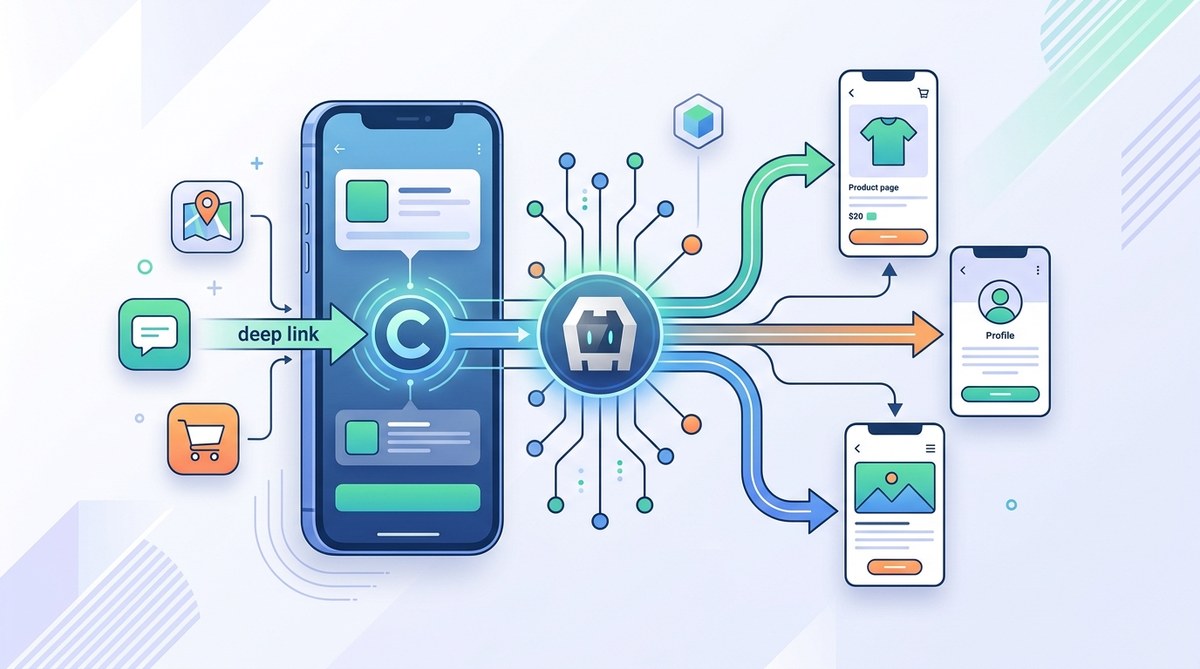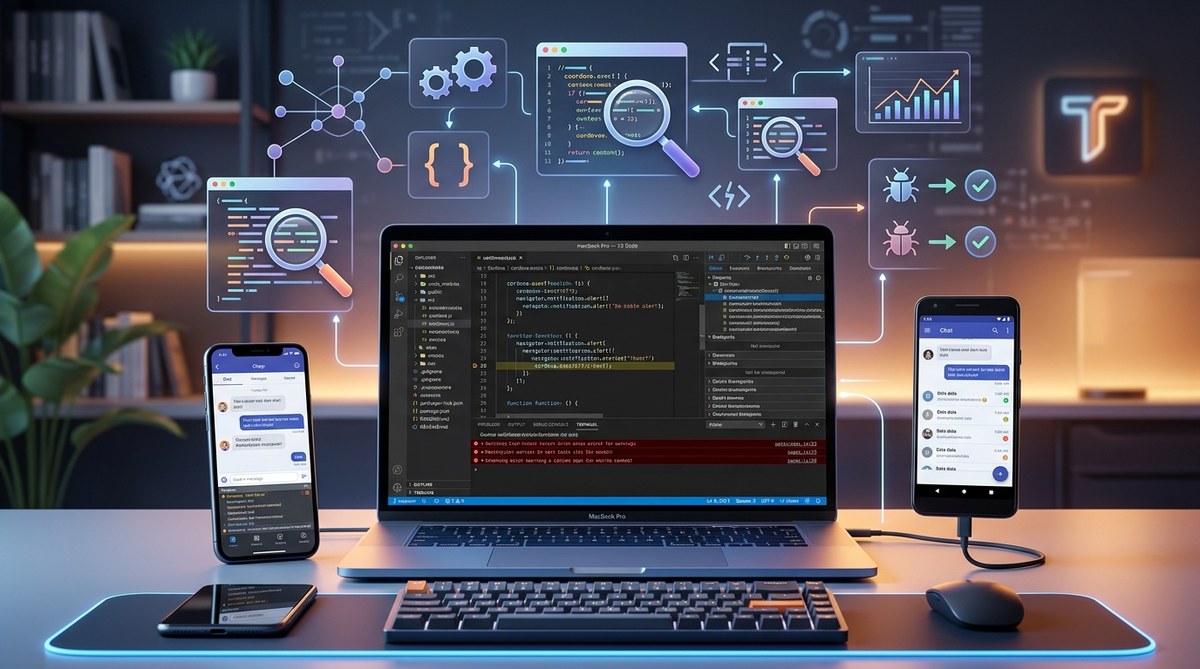
Developing with Cordova opens up a world of possibilities for building cross-platform mobile apps using familiar web technologies. But when bugs pop up or performance dips, it can feel like navigating a maze. Mastering advanced debugging techniques helps you troubleshoot more effectively, saving time and frustration. This guide walks through practical methods, tools, and best practices to elevate your debugging skills and keep your Cordova projects running smoothly.
Advanced debugging in Cordova involves leveraging native tools, precise logging, and automation. These techniques help identify issues faster, optimize performance, and improve app stability across platforms.
Unlocking the full potential of debugging tools for Cordova
Debugging is more than just fixing errors. It’s about understanding how your app behaves in different environments. Cordova apps run on multiple platforms, each with its own quirks and debugging tools. The key is to use the right combination of native and web-based tools to pinpoint issues quickly. This section covers the core techniques that form the foundation of advanced debugging for Cordova apps.
How to approach advanced debugging in Cordova
- Set up native debugging environments
- Use remote debugging tools effectively
- Implement detailed logging and error tracking
- Automate debugging workflows
- Identify common pitfalls and mistakes
Let’s break down each step into actionable processes.
1. Set up native debugging environments
Native debugging is essential for uncovering platform-specific issues. For iOS, Xcode offers powerful tools to debug JavaScript and native code. For Android, Android Studio provides a comprehensive environment for inspecting app behavior.
- iOS: Connect your device or use the simulator. Enable Web Inspector in Safari’s settings. Open Safari, go to Develop menu, select your app, and start inspecting the WebView. Use Xcode’s debugger for native code issues.
- Android: Enable developer options on your device. Use Chrome remote debugging by navigating to
chrome://inspectin Chrome. Select your app and inspect the WebView. Android Studio’s profiler can monitor app performance and native code.
2. Use remote debugging tools effectively
Remote debugging allows you to see what’s happening inside your app in real time. It provides insights into DOM elements, network requests, console logs, and native crashes.
- Safari Web Inspector: Use for debugging iOS apps. It captures console logs, network requests, and DOM updates.
- Chrome DevTools: For Android, Chrome’s remote debugging offers similar capabilities.
- Visual Studio Code: With the right extensions, it supports debugging Cordova apps across platforms, integrating console logs and breakpoints seamlessly.
3. Implement detailed logging and error tracking
Enhanced logs help you trace issues more precisely. Incorporate a logging library like cordova-plugin-console or sentry-cordova to capture errors and user actions.
- Best practices:
- Log user interactions, API responses, and native events.
- Use unique identifiers for sessions and devices.
-
Collect crash reports automatically for post-mortem analysis.
-
Mistakes to avoid:
| Technique | Common mistake | Why it matters |
|————–|———————–|———————|
| Overloading logs | Logging too much data | Slows down app and makes logs unreadable |
| Lack of context | Missing session info | Difficult to trace issues across sessions |
4. Automate debugging workflows
Automation accelerates troubleshooting. Use scripts to run tests, collect logs, and reproduce bugs.
- Write scripts to deploy apps to devices automatically.
- Use tools like Appium for automated UI testing.
- Integrate CI/CD pipelines to catch issues early.
Expert tip: Automate log collection and analysis to identify patterns faster. Tools like fastlane streamline deployment and debugging tasks.
5. Recognize and avoid common mistakes
Many developers encounter similar pitfalls. Awareness helps prevent wasted effort.
- Ignoring platform differences: Bugs may appear only on one OS. Always test on multiple devices.
- Neglecting plugin issues: Outdated or incompatible plugins cause crashes. Regularly update plugins and read changelogs.
- Insufficient error handling: Unhandled exceptions hide bugs. Wrap critical code in try-catch blocks and report errors gracefully.
Techniques to troubleshoot efficiently and avoid mistakes
| Technique | Purpose | Mistakes it prevents |
|---|---|---|
| Using remote debugging | Real-time inspection | Missing native issues |
| Implementing comprehensive logs | Trace complex bugs | Overlooking subtle errors |
| Automating tests | Detect regressions early | Manual testing oversights |
| Regular plugin updates | Compatibility | Crashes caused by outdated plugins |
Practical tips for debugging Cordova apps
- Always test in both development and production modes.
- Use device logs alongside remote debugging for full insight.
- Keep your debugging tools updated to leverage the latest features.
- Document recurring issues and solutions for future reference.
Remember, a systematic approach saves time. Use native tools first, then supplement with console logs and automation.
Wrap up your debugging toolkit with best practices
Mastering advanced debugging techniques for Cordova apps requires a combination of native environment setup, effective use of remote tools, detailed logging, and automation. Consistently applying these practices helps you catch issues early, understand their root causes, and deliver more reliable apps. The more familiar you become with native debugging environments for both iOS and Android, the faster you can resolve platform-specific bugs.
Keep refining your troubleshooting skills
Troubleshooting is an ongoing process. As Cordova and its plugins evolve, so do potential issues. Stay current with plugin updates, platform changes, and new debugging tools. Regularly revisit your debugging workflows to incorporate best practices and new techniques.
Finally, don’t forget that collaboration often speeds up problem-solving. Share your insights and solutions with your team or community. Sometimes, a fresh perspective can reveal a quick fix or a better approach.
Harnessing these advanced debugging techniques will make your development journey smoother and your apps more robust. Keep practicing, stay curious, and your troubleshooting skills will become second nature.
Happy debugging! With these techniques in your toolbox, you’ll troubleshoot Cordova apps with confidence, delivering quality experiences for your users every time.