You open your terminal, run `cordova build android`, and a few seconds later you have an APK. But what is actually rendering your HTML, CSS, and JavaScript? That’s the Cordova WebView engine, and it’s the single most important component in your hybrid app. If you don’t know how it works on each platform, you’re leaving performance and compatibility on the table. Let’s fix that.
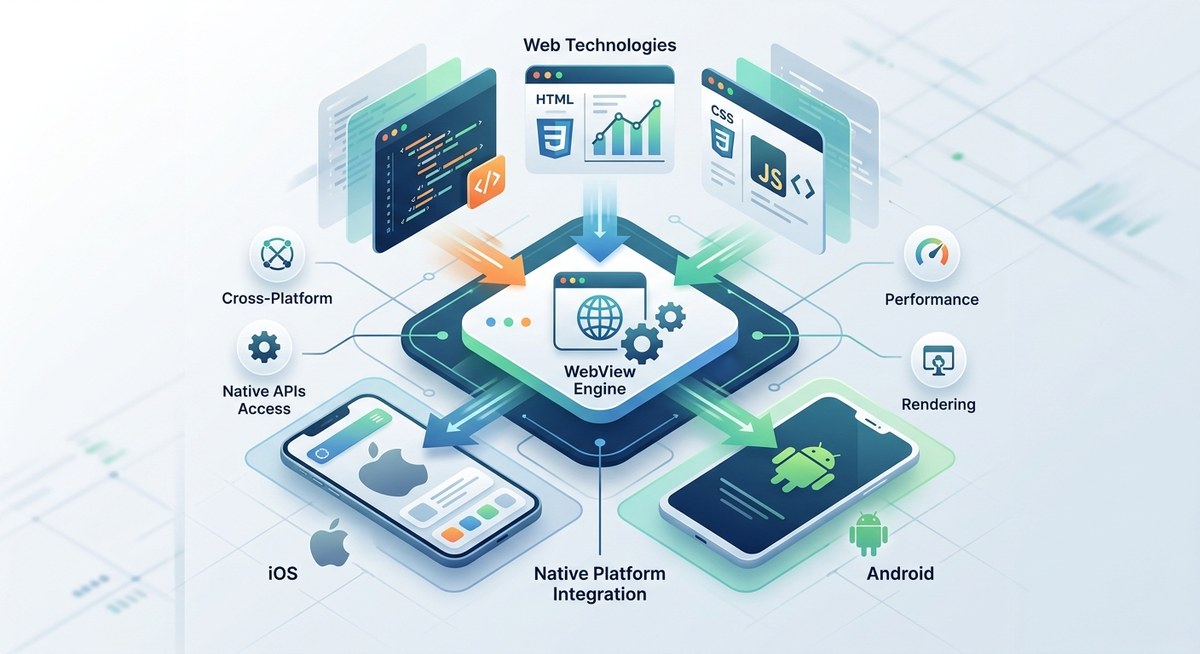
The Cordova WebView engine is not a single browser; it’s a different renderer on every platform. Android uses the system WebView (Chrome-based), while iOS uses WKWebView (Safari-based). Knowing these differences helps you optimize JavaScript execution, handle CORS, avoid rendering bugs, and improve startup time. In 2026, legacy UIWebView is fully dead on iOS, so ensure you target WKWebView only.
## The Cordova WebView Engine at a Glance
Apache Cordova wraps your web app inside a native container. That container contains a WebView, which is essentially an embedded browser control. Here’s the thing: Apple and Google don’t ship the same browser engine. Android uses the system WebView, which is updated via Google Play and is based on Chromium. On iOS, Apple forces all third-party browsers to use WebKit, so your Cordova app runs inside WKWebView (the same engine powering Safari). This means your app’s behavior can differ between platforms even if your code is identical.
– **Android WebView**: Chromium based, updated automatically, supports modern ES6+, Service Workers, and has consistent rendering.
– **iOS WKWebView**: WebKit based, fast JavaScript JIT compilation, but has restrictions like Intelligent Tracking Prevention (ITP) and no shared cookies.
– **Windows (deprecated)**: Legacy EdgeHTML (older) or System WebView (newer), but Microsoft has moved away from Cordova support.
## Why the WebView Engine Matters for Performance
Your app’s startup time, scrolling smoothness, and memory usage all depend on the WebView engine. A mismatch between your code assumptions and the WebView capabilities leads to laggy apps or weird bugs.
Let’s break down the key differences.
### Android WebView: Chrome Under the Hood
On Android, the WebView is updated independently of the OS via Google Play. This means users on Android 5.0+ (which, in 2026, is almost everyone) have a recent Chromium WebView. You get modern JavaScript features, decent CSS Grid support, and the same V8 JavaScript engine as desktop Chrome. However, there’s a gotcha: the WebView version varies by device. Some older devices may lag behind by a few months. Also, the WebView has separate storage and cookie jars from Chrome itself, so you can’t rely on browser data.
### iOS WKWebView: Apple’s Controlled Environment
WKWebView is a far cry from the old UIWebView. It has non-blocking JavaScript execution, better memory management, and supports modern web standards. But it also introduces headaches:
– **Intelligent Tracking Prevention (ITP)**: ITP can block third-party cookies and localStorage in certain cross-origin scenarios. If your app loads resources from a CDN, ITP may treat them as trackers and block local storage.
– **App-Bound Domains**: Starting with iOS 14, you can restrict your WebView to only load content from domains you list. Use this to simplify ITP handling.
– **WKURLSchemeHandler**: You can intercept custom URL schemes (like `app://`) and serve content from native code. This is how modern Cordova plugins deliver static assets without file:// limitations.
> “Knowing your target platform’s WebView quirks is half the battle. On iOS, always test with ITP enabled and verify that localStorage works across page loads. On Android, check the WebView version available on your lowest supported API level.” *- Maria Chen, Senior Hybrid App Developer*
## Platform-Specific Behaviors You Must Know
| Scenario | Android (Chromium WebView) | iOS (WKWebView) |
|———-|—————————-|——————|
| JavaScript engine | V8 with JIT | JavaScriptCore with JIT |
| Service Workers | Supported (API 24+) | Supported (iOS 11.3+) |
| CORS | Standard rules | Standard rules, but ITP blocks some cross-origin requests |
| file:// access | Allowed by default, but mixed content blocked | Blocked; you must use WKURLSchemeHandler or a local server |
| localStorage | 10 MB limit, persistent | 10 MB limit, but ITP may delete it |
| WebRTC | Supported via WebView | Supported, but requires app-bound domains |
| Remote debugging | Chrome DevTools via `chrome://inspect` | Safari Web Inspector via Mac |
## 3 Steps to Optimize Your Cordova App for the WebView
Here is a numbered list of practical steps for 2026.
1. **Use the Latest WebView Plugin**
– For iOS, use `cordova-plugin-ionic-webview` (or the new `cordova-plugin-wkwebview-engine` that ships with Cordova 12+). This ensures your app uses WKWebView without file:// fallacies.
– For Android, ensure your `AndroidManifest.xml` includes `android:usesCleartextTraffic=”true”` if you load resources over HTTP.
2. **Minimize DOM Size and Reflows**
– The WebView engine has a single main thread. Heavy DOM manipulations block rendering. Use virtual scrolling libraries (e.g., TanStack Virtual) to keep the DOM lean.
– Batch CSS changes and avoid layout thrashing.
3. **Cache Your Assets Locally**
– Use the `cordova-plugin-file` together with a service worker to cache HTML, CSS, and JS files on first load. This reduces startup time and works offline.
– On iOS, remember that Service Workers are tied to WKWebView’s storage partition; they won’t share with Safari.
## Common Mistakes and How to Fix Them
| Mistake | Consequence | Fix |
|———|————-|—–|
| Using `file://` on iOS | Blank screen or CORS errors | Switch to `http://localhost` using WKURLSchemeHandler (the Ionic WebView plugin does this automatically). |
| Ignoring ITP on iOS | localStorage disappears after a few days | Register App-Bound Domains in your Info.plist. Or use native storage via `cordova-plugin-nativestorage`. |
| Assuming ES2024 features work everywhere | App crashes on older Android WebViews | Use Babel to transpile to ES2015. Target Chrome 70+ equivalent. |
| Not handling WebView version discrepancies | Some users see broken layouts | Serve polyfills conditionally based on feature detection. |
## How to Debug the Cordova WebView Engine
Debugging a WebView is different from debugging a browser. You cannot just open DevTools on the device directly.
### For Android
1. Enable Developer Options on your Android device.
2. Enable USB debugging.
3. Connect via USB and open `chrome://inspect` in Chrome (desktop).
4. You’ll see your app’s WebView listed there. Click inspect.
### For iOS
– You need a Mac with Safari (desktop).
– Enable Web Inspector on iOS: Settings > Safari > Advanced > Web Inspector.
– Connect the device via USB. Open Safari > Develop > Your Device > Your App.
For more in-depth tips, check out our guide on
## Dealing with Intelligent Tracking Prevention (ITP) in 2026
ITP has evolved with each iOS release. As of iOS 16, ITP can now partition storage even within the same app if you load from multiple origins. The safest approach is to restrict your entire app to a single origin (your own domain). Use `WKAppBoundDomains` key in `Info.plist`.
If you need to load external content (like an OAuth flow), use `ASWebAuthenticationSession` instead of a WebView popup. This keeps the authentication out of your app’s storage and avoids ITP conflicts.
## A Quick Comparison of WebView Plugins
| Plugin | iOS Support | Android Support | Key Feature |
|——–|————-|—————–|————-|
| `cordova-plugin-wkwebview-engine` | WKWebView (iOS 9+) | N/A | Native WKWebView with file scheme handling |
| `cordova-plugin-ionic-webview` | WKWebView (iOS 9+) | System WebView | WKURLSchemeHandler, local server on Android |
| `cordova-plugin-google-webview` | N/A | Custom Chrome WebView (Android only) | Allows bundling a specific Chromium version |
## Choosing the Right WebView Strategy for Your Project
Your choice depends on your target audience. If you need consistent rendering across all Android devices regardless of OS version, consider using `cordova-plugin-google-webview` (Crosswalk successor). However, it adds ~30MB to your APK. For most projects in 2026, the system WebView on Android is good enough, especially because Google Play Services auto-updates it.
For iOS, always use `cordova-plugin-ionic-webview` or the latest Cordova engine. Apple does not allow alternative WebViews, so you’re stuck with WKWebView. Make peace with its quirks.
For those who need to integrate native features without friction, our post on https://taco.tools/how-to-integrate-native-device-features-into-your-cordova-apps-seamlessly/ covers the plugin bridge.
## Optimizing Startup Time by Preloading the WebView
A common complaint is the white screen before the WebView loads. You can mitigate this:
– Set a splash screen via `cordova-plugin-splashscreen`.
– Warm up the WebView by creating it early in native code (only possible with custom shell code).
– Minimize the initial HTML payload. Load critical CSS inline and defer everything else.
For a deeper look, read our piece on
## A Note on WebView Versioning
Android’s WebView is updated through Google Play, but there can be delays. If your app relies on a specific feature (like CSS `container-type` or `scroll-timeline`), test on the oldest Android device you support. You can check the WebView version at runtime using the `navigator.userAgent` in JavaScript, but a more reliable approach is to use feature detection.
## Build Your Next App With Confidence
The Cordova WebView engine is not a black box. It’s a well documented, platform-specific web browser that you can learn to control. By understanding the differences between Android’s Chromium WebView and iOS’s WKWebView, you can avoid hours of debugging and deliver a smooth user experience.
Start today: audit your app’s WebView usage. Check if you’re still using deprecated plugins or relying on `file://` on iOS. Switch to the Ionic WebView plugin if you haven’t already. Test with ITP enabled. And most importantly, keep your Cordova toolchain updated to 2026 standards. Your users will notice the difference.
For a complete guide on boosting overall app performance, see And if you’re ready to streamline your entire workflow, https://taco.tools/how-to-streamline-your-cordova-development-workflow/ has you covered.