Your Cordova project has been humming along for months. Then a security patch drops, a new Android API level arrives, or a plugin stops compiling. Suddenly you need to update. It can be tempting to ignore the upgrade, but staying on an old version means missing out on fixes, performance gains, and newer native features. The good news? Upgrading your Cordova version is straightforward when you follow the right process.
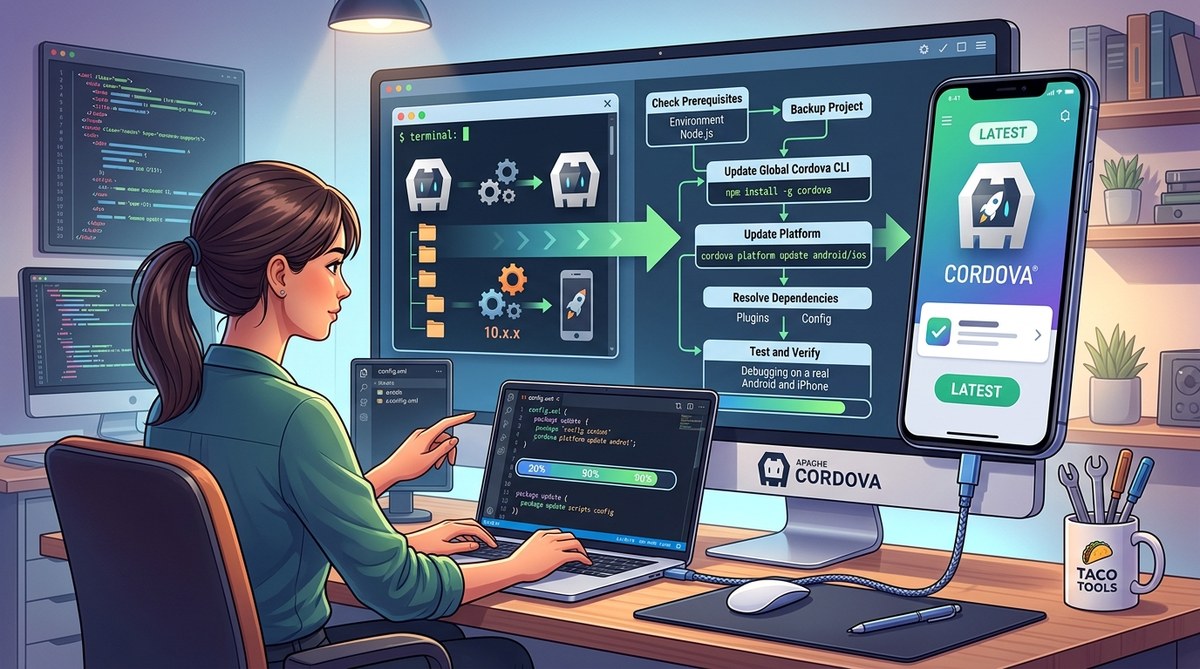
Upgrading your Cordova version in 2026 requires more than just running an npm update. You need to check platform support, review plugin compatibility, and test thoroughly. This guide walks you through a safe, repeatable process that minimizes downtime and avoids broken builds. Start with a full backup, then update the CLI, platforms, and plugins one step at a time.
Understanding the Upgrade Path
Cordova follows semantic versioning. Major version bumps (like 11.0.0) can include breaking changes. Minor and patch versions usually add features or fix bugs without breaking your app. Before you run any command, know what you are moving to.
- Check your current version: Run
cordova --versionin your project directory. - Read the release notes: The Apache Cordova blog and GitHub releases detail what changed.
- Look for deprecated APIs: If your project uses plugins that rely on older Cordova internals, they may stop working.
- Review platform requirements: Android 15 (API 35) and iOS 18 require updated toolchains. A new Cordova version often includes support for these.
For a deeper look at avoiding common pitfalls, see our post on 7 Cordova Project Pitfalls and How to Avoid Them in 2026.
Preparing Your Environment for the Upgrade
A smooth upgrade starts before you type a single command. Set yourself up for success.
- Backup your project. Use git or copy the entire folder. You want a rollback point.
- Update Node.js and npm. Cordova relies on these. Use the latest LTS Node version (22.x in 2026). Run
node --versionandnpm --version. - Install or update the Cordova CLI globally.
npm install -g cordova@latestgives you the newest CLI. - Review your installed plugins.
cordova plugin listshows what you have. Some plugins may not support the latest Cordova version yet. - Check platform versions.
cordova platform listtells you what Android and iOS versions you are using.
If you manage multiple projects, consider streamlining your workflow. Read How to Streamline Your Cordova Development Workflow for tips.
Step-by-Step Process to Upgrade Cordova Version
Once your environment is ready, follow these steps in order.
-
Update the Cordova CLI.
npm install -g cordova@latest
Verify withcordova --version. You should see the newest release (for example, 12.0.0 in mid 2026). -
Remove and re-add each platform.
cordova platform rm android

   cordova platform add android
This ensures your platform project files use the latest templates and Gradle settings. Do the same for iOS. -
Update all plugins.
cordova plugin update
If a plugin fails to update, check its repository. You may need to switch to a newer fork or a different plugin. -
Run
cordova requirementsto confirm your development environment matches the new platform demands. Fix any missing SDK components. -
Clean and rebuild.
cordova clean

   cordova build android
A clean build eliminates old artifacts that could cause subtle bugs.
For extra confidence, you can automate this process. See How to Automate Cordova Builds with GitHub Actions to integrate upgrades into your CI pipeline.
Managing Platform and Plugin Compatibility
Not every plugin or platform update plays nicely with a new Cordova version. Here is a table of common issues and how to handle them.
| Issue | Symptom | Solution |
|---|---|---|
Plugin uses deprecated cdv object |
Build errors mentioning cdv |
Use a newer version of the plugin or replace it with a Capacitor-compatible alternative. |
| Android build fails with Gradle version mismatch | Gradle sync errors | Update Gradle wrapper and Android Gradle Plugin. Run cordova requirements for hints. |
| iOS pod install hangs | CocoaPods versions conflict | Update CocoaPods: sudo gem install cocoapods. Check Podfile for incompatible source references. |
| Plugin not found after upgrade | require('cordova/plugin') fails |
Reinstall the plugin or remove and add again. Rarely, the plugin needs a patch. |
If you run into device feature integration problems, our guide on How to Integrate Native Device Features into Your Cordova Apps Seamlessly can help.
Testing After the Upgrade
A successful build does not mean your app works correctly. Thorough testing catches regressions.
- Run unit tests. If you have a testing framework, execute it after the upgrade.
- Test on real devices. Emulators miss hardware quirks.
- Check every plugin feature. Camera, geolocation, notifications, and file access may behave differently.
- Monitor performance. Use profiling tools to spot slowdowns.
For advanced debugging techniques, check Enhance Your Cordova Apps with Advanced Debugging Techniques. And for performance issues, read Boost Your Cordova App Performance with Effective Optimization Techniques.
Expert tip: Use
cordova requirementsbefore and after an upgrade. It lists missing tools and SDK versions. This single command can save hours of troubleshooting.
Common Mistakes to Avoid
Even experienced developers slip up. Here are the biggest mistakes when upgrading Cordova version.
- Skipping the backup. A failed upgrade can corrupt platform folders. Always have a fallback.
- Updating platforms without updating the CLI first. Cordova CLI and platform versions must be compatible.
- Assuming all plugins are compatible. Always check plugin repositories for version support.
- Ignoring
config.xmlchanges. New Cordova releases may introduce new preference options or deprecate old ones. - Not updating project dependencies. Libraries like Gradle, CocoaPods, and Android SDK build tools need to match.
For a full list of pitfalls, refer to 7 Cordova Project Pitfalls and How to Avoid Them in 2026.
Automating Future Upgrades
Manual upgrades are fine for a single project. If you maintain several apps, automate the repetitive parts.
- Use
npx cordova-check-pluginsto see which plugins need updates. - Schedule a weekly or monthly check with a CI job that runs
npm outdatedandcordova platform list. - Combine with automated testing and deployment. Our guide on Optimizing Deployment Strategies for Cordova Apps in 2026 shows how.
Automation frees you up for more important work, like actually making your app better.
Keeping Your Cordova Project Healthy Year After Year
Upgrading your Cordova version does not have to be a dreaded chore. With the right preparation and a repeatable process, you can keep your app secure, fast, and compatible with the latest devices. The steps in this guide will work for any version jump, whether you are going from 10.x to 11.x or 11.x to 12.x. Always test, always backup, and stay curious about what each new Cordova release brings. Your users will thank you with fewer crashes and better experiences.
For more ways to sharpen your skills, learn how to Master Cordova CLI Commands for Faster Development and Maximize Cross-Platform Performance in Cordova Apps. Happy coding.